











Whenever the word programming is brought up, what comes to mind? Is it the intricate set of instructions that come in the form of complex codes or is it the simple act of commanding your computer to accomplish a certain task?
Well, LED display programming simply involves dictating what your display will execute. It is a simple task that you can undertake yourself as shown in the following programming guide.
Step 1: Get the Right Software & Accessories
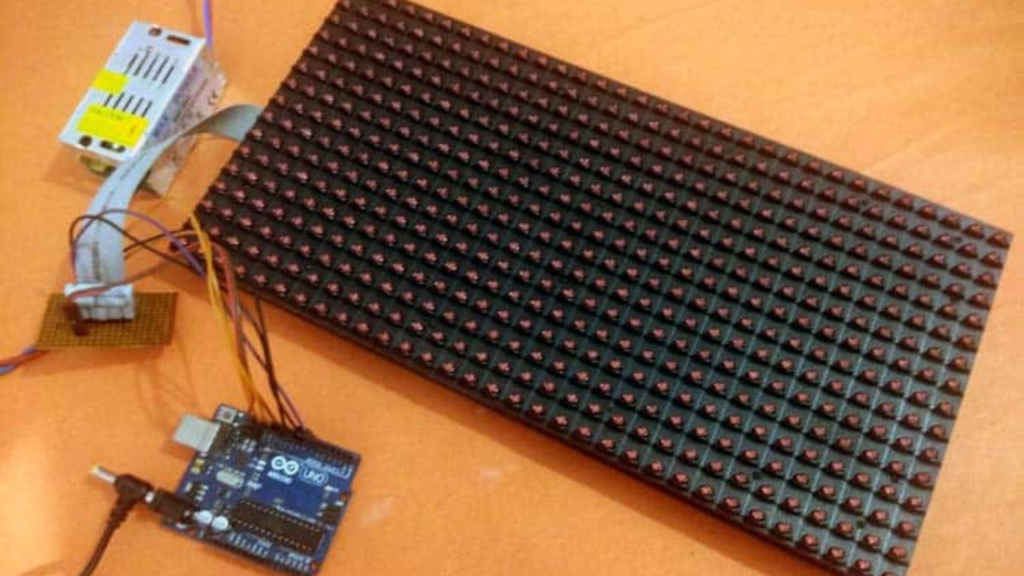
Programming your LED display screen or board begins with the acquisition of the necessary materials and tools. Although this process is centered around software, you will also need some hardware. As you set on the journey to program your LED display, make sure you have the following in hand.
- Compatible Software: Get befitting software that works well with your respective LED display type as well as its respective controllers. Make certain that your chosen functionality supports all the functionalities you wish to execute with your LED display. You can opt for;
- Arduino
- Screenly OSE
- Nova LCT
- Yodeck
- Screen cloud among others.
- Controllers: Before setting out to program your LED display, find controllers to bridge the gap between the source and the LED display. For instance, get a synchronous LED controller which promises real-time display.
- Computer: Most LED screens are operated with the aid of computers so you will probably need a computer to install your programming software.
Step 2: Install Your Software
Once you have found a software that best suits your needs, visit their official website and choose the latest version. Make certain that you go through the software’s specifications to establish whether it is compatible with your control model. Click on the download tab to save the software on your computer. Pay attention to the source of the file to avoid downloading malware.
The downloading process may take a while depending on the speed of your internet. But once completed, simply click on the file and run the installer. You may be prompted to give administrator permission by clicking yes. Subsequently, follow the installation instructions that pop up on your screen to complete the installation process then launch your software.
Step 3: Set Your Software
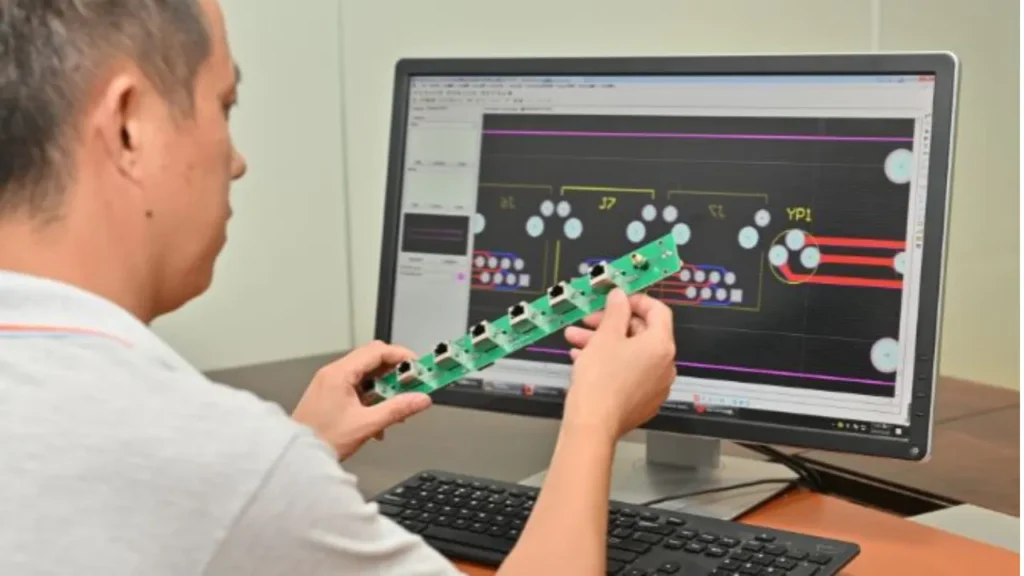
With your ideal software downloaded and installed, all that is left is fine-tuning its settings to ensure that it meets your requirements. You will need to tweak a number of settings to optimize the performance of your software. This includes:
- Set off the Default Settings: Choosing to keep the default settings on means you will not be able to program your software as you wish. As such, begin by declining the option to keep them on.
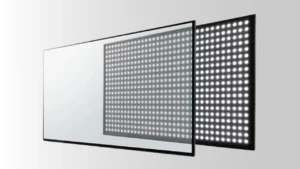
- Enter Your Preferred Dimensions: Dimension looks at the exact concentration of LEDs on your LED display or board. Simply set the number of LEDs in your display detailing their respective height and width. This will help your installed software calculate your display’s size.
- Select the Module: Proceed to choose your LED display module. This is simply the distance between separating the LEDs in your LED board. If your LEDs are closely packed, selecting a module that reflects this distance will guarantee you a higher resolution.
- Configure Network Settings: Confirm the type of network that your LED display and controller utilize. Is it wireless or wired? Proceed to connect your display or board to an active network shared by your computer as well as the controller. Once they are all actively connected, scan your controller from the software’s menu then proceed to input the display parameters.
- Adjust the Luminance: Now that your computer, controller, and LED display are all connected, fine-tune the brightness to your desired level. For typical displays and boards, 2000-4500 nits work best in both indoor and outdoor settings.
Step 4: Connect Your Controller
After installing your software and fine-tuning it to your liking, you need to link your LED display controller to the software. All you need to do is:
- Launch Your Software: From your computer or laptop, open your installed LED display control software by double-clicking its icon. Recheck your internet connection and ensure it is active before proceeding.
- Connect Your Controller and Ensure it is Recognized: Once you have launched your software, scan for your controller. It should pop up almost immediately if your connection is strong. However, in some instances, it may fail to read immediately. If you experience this, recheck the connection between your LED display and your computer. If the connection is faultless, the controller will be recognized instantaneously.
- Login: The moment your controller is recognized, you will receive a login prompt from the software’s interface. Simply fill in the requested details and grant the admin permissions requested. Once your login attempt is successful, you are ready to go.
Step 5: Create Your Desired Content
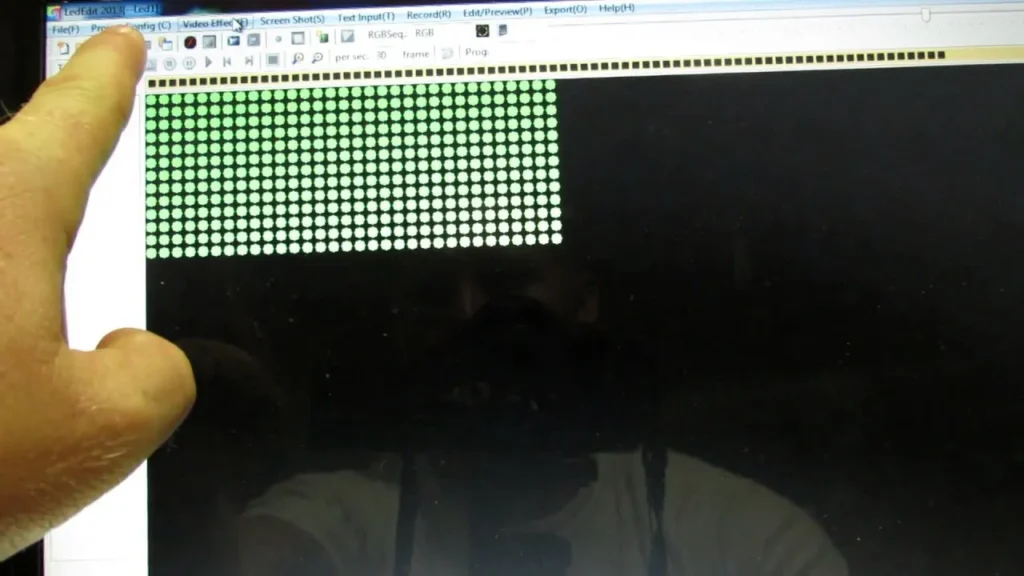
After successfully linking your processor, LED display, and computer, log into your installed software and get to work. Now, you are ready to feed ready-made content into the computer and have it displayed on your LED display. Alternatively, generate new content from scratch using certified content creation tools like Adobe.
When creating content, ensure that you apply pixel dimensions supported by your LED display. Failure to do this is likely to leave you with blurry content. It is advisable to always create a template library comprised of different pixel dimensions.
Step 6: Send Your Content to the LED Display
With your content ready, double-check it on your software simulator before sending it to your display. Previewing the content will help you spot any flaws, giving you an opportunity to adjust essential parameters such as effects and transitions. On the software’s menu, click the send button, this will convey your content to the processor, virtually making it ready for viewing on your LED display.
Final Checks
At this point, all that is left to do is put your programmed LED display to test. But first, you must check whether your configurations are as you desire. To ascertain that your programming was successful, try viewing content from varying angles as well as different LED brightness levels.
Control
Although there is a consensus that programming LED display boards or screens is quite daunting, this programming guide is proof that you can configure your display by yourself. All you need is reliable software and a little belief to program your business or residential LED screen or board.