









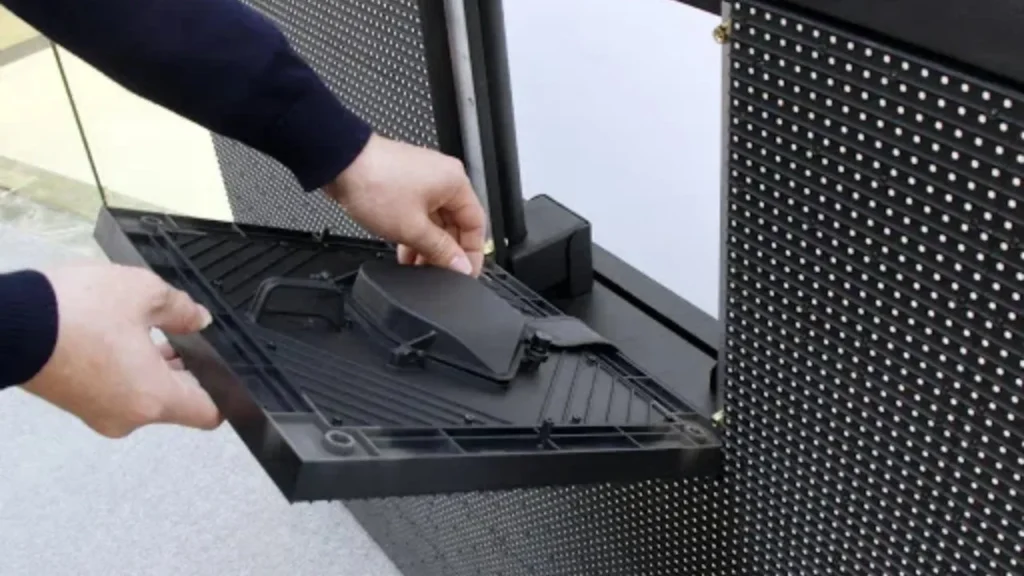
Why LED Screen Maintenance Matters
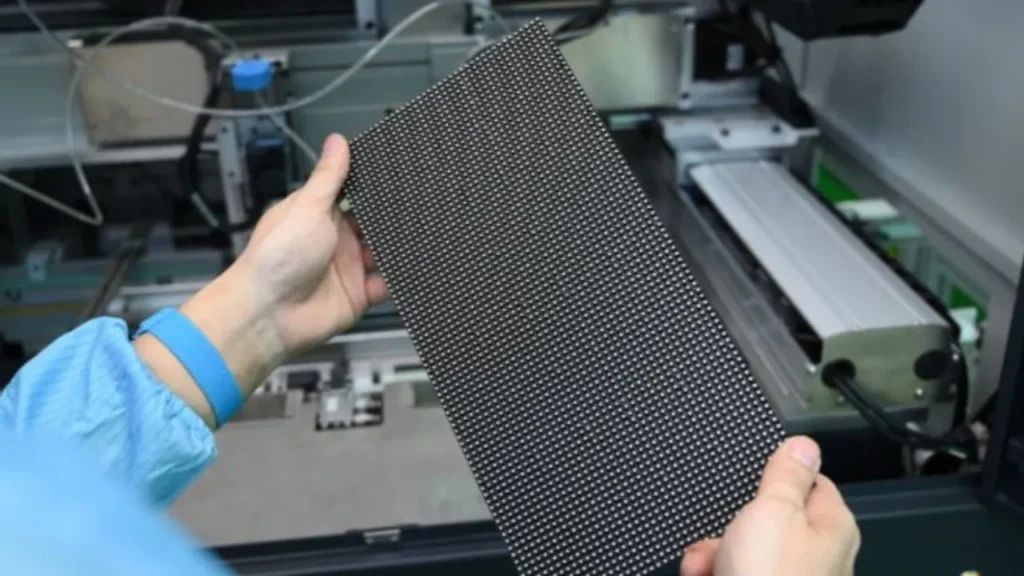
LED screens are investments. A well-maintained screen can last 100,000+ hours – over 11 years of 24/7 operation. A neglected screen may fail in 2-3 years.
Regular maintenance helps you:
✅ Avoid expensive repairs
✅ Prevent unexpected downtime
✅ Maintain optimal brightness and color
✅ Extend the life of your display
This guide covers everything you need to know – cleaning, diagnostics, software updates, and storage.
Quick Maintenance Checklist
| Task | Frequency | Time needed |
| Clean the screen surface | Weekly to monthly | 10-30 minutes |
| Check cable connections | Monthly | 5-10 minutes |
| Inspect for dead pixels | Monthly | 5 minutes |
| Run diagnostic tests | Quarterly | 15-30 minutes |
| Update firmware/software | As released | 15-60 minutes |
| Calibrate color and brightness | Every 3-6 months | 20-40 minutes |
| Professional inspection | Annually | 1-2 hours |
Part 1: Cleaning Your LED Screen

How Often to Clean
| Environment | Recommended frequency |
| Indoor (clean office) | Once per month |
| Indoor (retail, high traffic) | Every 2-3 weeks |
| Outdoor (normal) | Weekly |
| Outdoor (dusty or coastal) | 2-3 times per week |
| Rental screens | After every use |
What You Need
| Item | Purpose |
| Soft microfiber cloth | Primary cleaning tool – non-scratch |
| Soft brush | Removing loose dust |
| Distilled water | Safe for LED surfaces |
| LED-safe cleaner | For stubborn stains (no alcohol, no ammonia) |
| Compressed air (low pressure) | For hard-to-reach areas (use carefully) |
Step-by-Step Cleaning
| Step | Action |
| 1 | Power off the screen |
| 2 | Remove loose dust with a soft brush or dry microfiber cloth |
| 3 | Dampen microfiber cloth with distilled water (never spray directly) |
| 4 | Wipe gently – do not press hard |
| 5 | Dry with a clean, dry microfiber cloth |
| 6 | Inspect for missed spots |
What to Avoid
| Item | Why to avoid |
| Paper towels | Scratches the surface |
| Alcohol | Damages protective coating |
| Ammonia (Windex, glass cleaners) | Destroys coating, causes discoloration |
| Abrasive pads | Permanent scratches |
| Spraying directly on screen | Liquid seeps into edges |
| Pressure washer | Forces water inside – screen destroyed |
Pro tip: For outdoor screens, check IP rating before cleaning. IP65 screens can handle damp cloth cleaning. Lower ratings may require dry cleaning only.
Part 2: Preventing Moisture and Dust Infiltration
Common Threats
| Threat | Damage caused |
| Dust | Traps heat, accelerates LED failure |
| Moisture | Short circuits, corrosion |
| Humidity | Internal condensation |
| Salt spray (coastal) | Corrosion of metal components |
Prevention Tips
| Tip | How to do it |
| Use dust covers | Cover screen when not in use for long periods |
| Ensure proper sealing | Check IP ratings – outdoor screens need IP65 |
| Control room humidity | Use dehumidifier in humid climates |
| Regular inspection | Check seals and gaskets for damage |
| Proper ventilation | Ensure adequate airflow around the screen |
Part 3: Monitoring and Diagnostics
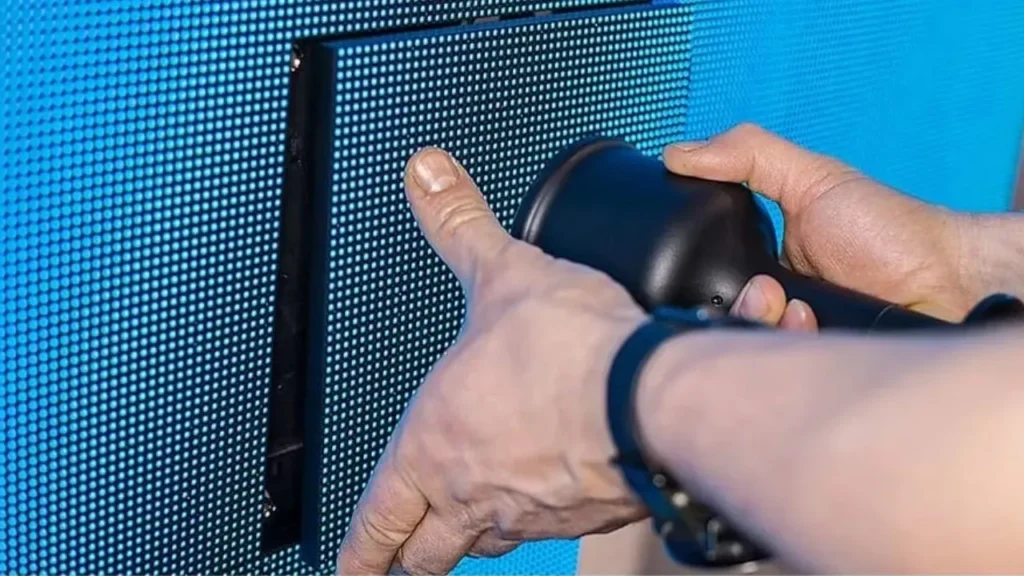
What to Check Regularly
| Symptom | Possible cause | Action |
| Flickering | Loose cable, low refresh rate | Check cables, adjust settings |
| Dimming | Aging LEDs, power issue | Run calibration, check power supply |
| Color inconsistency | Calibration off, driver issue | Recalibrate, check receiving cards |
| Dead pixels (single) | Individual LED failure | Replace module if numerous |
| Dead pixels (row/column) | Driver IC or cable issue | Check connections, replace driver |
| Overheating | Poor ventilation, fan failure | Clean vents, check fans |
| Partial blackout | Power supply or data signal loss | Check power distribution, reseat cables |
Using Diagnostic Tools
Most LED control software includes diagnostic features:
| Software | Diagnostic capability |
| NovaStar LCT | Dead pixel detection, brightness test, color test |
| HDPlayer | Module scanning, performance monitoring |
| LEDSet | Hardware diagnostics, signal testing |
What to run regularly:
Full-white test (check for dead pixels)
Full-red, green, blue tests (check color consistency)
Grayscale test (check subtle color variations)
Refresh rate test (check for flicker)
Logging Performance Data
Keep a maintenance log:
| Field | Example |
| Date | 2026-05-06 |
| Screen hours | 5,234 hours |
| Cleaned? | Yes |
| Dead pixels found | 0 |
| Firmware version | v3.2.1 |
| Notes | No issues |
Trends to watch: If dead pixel count increases steadily, anticipate module replacement soon.
Part 4: Software and Firmware Maintenance
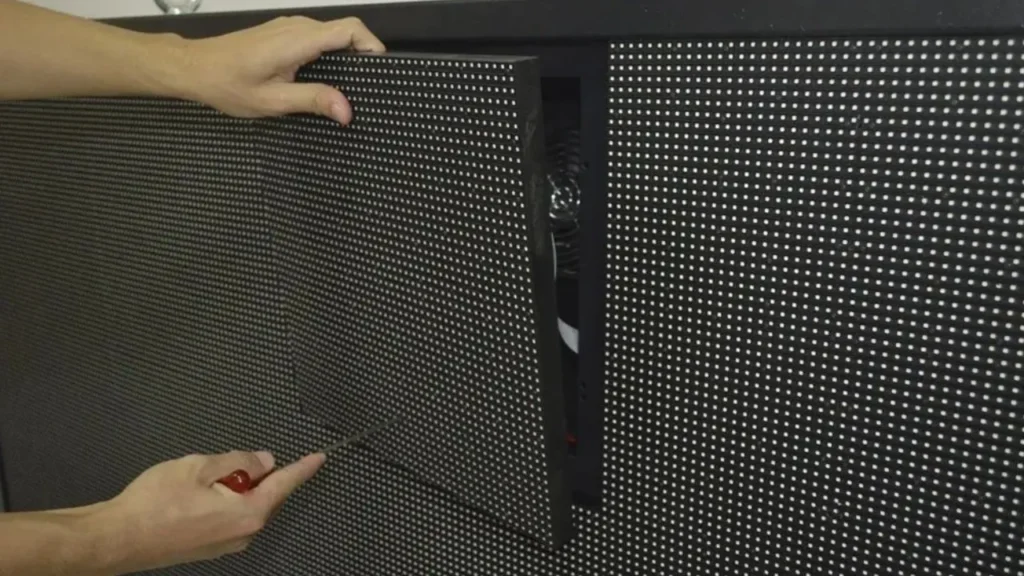
Keeping Software Updated
Why updates matter:
Bug fixes for known issues
Performance improvements
New features and compatibility
Security patches (for networked screens)
What to update:
| Component | Update frequency |
| Sending card firmware | When manufacturer releases update |
| Receiving card firmware | When manufacturer releases update |
| Control software | Check quarterly |
| Media player software | Automatic updates if connected |
How to update (NovaStar example):
Download latest firmware from manufacturer
Connect PC to sending card via USB/Ethernet
Open NovaLCT software
Go to Settings → Firmware Update
Select file and follow prompts
Do not power off during update
⚠️ Warning: Do NOT interrupt firmware updates. A failed update can brick your controller.
Calibrating Color and Brightness
Why calibrate: LEDs drift over time. Calibration ensures uniform brightness and accurate color across the entire screen.
How often:
New screens: Calibrate after 100-200 hours of use (burn-in period)
Normal use: Every 3-6 months
Rental screens: Before each event
Critical applications (broadcast, control rooms): Monthly
What calibration does:
Adjusts individual pixel brightness
Corrects color temperature
Ensures uniformity across modules
Pro tip: Some manufacturers offer automatic calibration with built-in cameras. For manual calibration, use a colorimeter or calibration camera.
Backup and Recovery Planning
What to back up:
| Item | How to back up |
| Screen configuration | Export from control software |
| Calibration data | Save calibration files |
| Content playlists | Copy to external drive or cloud |
| Firmware versions | Keep copies of current and previous versions |
Recovery plan:
Keep spare modules (5-10% of total)
Keep spare receiving cards and power supplies
Document cable connections (photos)
Save configuration files offline
Part 5: Storage Best Practices
When Not in Use for Extended Periods
| Step | Action |
| 1 | Clean the screen thoroughly before storage |
| 2 | Power off and unplug all cables |
| 3 | Disconnect and label cables for reassembly |
| 4 | Store modules in original packaging (if disassembled) |
| 5 | Keep in cool, dry place (10-30°C, <70% humidity) |
| 6 | Avoid direct sunlight |
| 7 | Cover with dust cover or cloth |
For Rental Screens
| Best practice | Why |
| Use flight cases | Protect during transport |
| Inspect before and after each rental | Document condition |
| Clean after every use | Prevent buildup |
| Test before shipping to client | Avoid on-site surprises |
| Keep detailed rental logs | Track usage and issues |
Part 6: Common Maintenance Mistakes
| Mistake | Consequence | Correct practice |
| Skipping cleaning | Dust buildup traps heat, shortens life | Clean on schedule |
| Using wrong cleaners | Coating damage, discoloration | Use distilled water or LED-safe cleaner |
| Ignoring early warnings | Small issues become big repairs | Run diagnostics monthly |
| Skipping firmware updates | Miss bug fixes and performance gains | Update when released |
| No spare parts | Extended downtime when failure occurs | Keep 5-10% spare modules |
| Poor cable management | Difficult troubleshooting, loose connections | Label cables, secure with ties |
| Storing in humid areas | Corrosion, moisture damage | Store in dry, climate-controlled space |
Summary: Maintenance Schedule
| Frequency | Tasks |
| Weekly (outdoor) | Clean surface, visual inspection |
| Monthly (indoor) | Clean surface, visual inspection |
| Monthly | Check cable connections, run dead pixel test |
| Quarterly | Run full diagnostic, check temperature, document performance |
| Every 3-6 months | Calibrate color and brightness, clean internal components |
| As released | Update firmware and software |
| Annually | Professional inspection, deep clean |
Ivan’s LED Displays
At IvanLED, we manufacture LED displays designed for easy maintenance:
Modular design – Replace individual modules, not whole screens
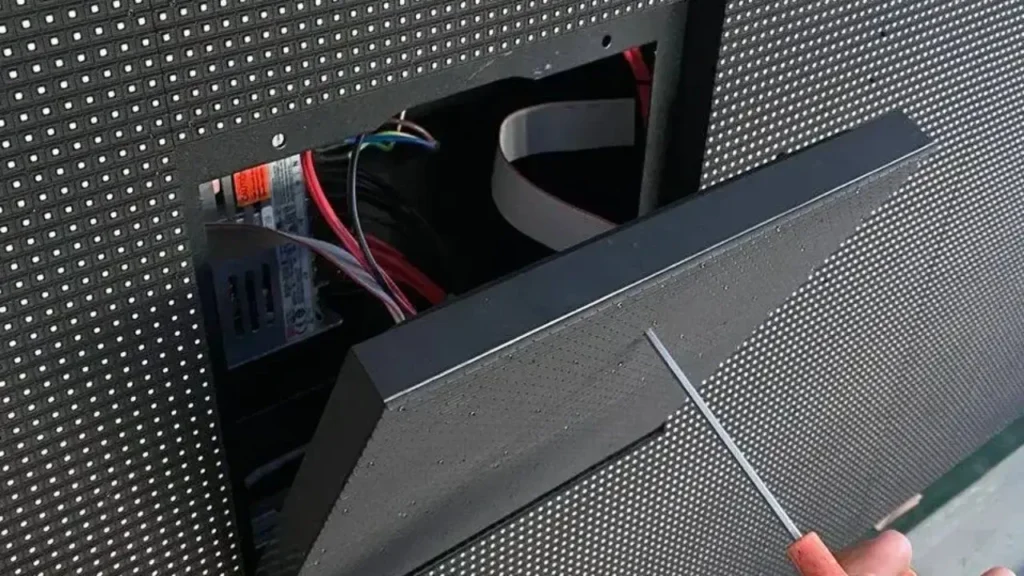
Front-service options – Quick access from front
Diagnostic software support – Compatible with industry tools
Spare parts available – Modules, power supplies, receiving cards
1-year warranty – Peace of mind included
Frequently Asked Questions
Q: How often should I clean my LED screen?
Indoor screens: Once per month. Outdoor screens: Weekly. Rental screens: After every use. High-traffic or dusty areas may require more frequent cleaning.
Q: What are the most common causes of LED screen failure?
Most failures come from: power supply issues (20%), heat damage (25%), moisture ingress (15%), physical impact (20%), and age-related LED failure (20%). Regular maintenance prevents most of these.
Q: How do temperature and humidity affect LED screen life?
High temperatures accelerate LED degradation – every 10°C above recommended reduces lifespan by 20-30%. High humidity causes corrosion and condensation. Keep indoor screens at 10-30°C, <70% humidity. Outdoor screens must be IP65-rated for weather protection.
Q: How do I prevent dead pixels?
You cannot completely prevent dead pixels, but you can minimize risk: avoid physical impact, keep screens cool, use proper power protection, and buy quality screens with good binning. Over time, some pixel failure is normal – that is why modular designs allow easy replacement.
Q: What is the best way to store an LED screen?
Store in original packaging or flight cases in a cool, dry place (10-30°C, <70% humidity). Avoid direct sunlight, dust, and moisture. Clean before storage. For long-term storage, power on every 3-6 months to check function.
Q: Does IvanLED offer maintenance services?
We provide maintenance guides, technical support, and spare parts. For large installations, we can recommend local service providers. Contact us for support.