









What Are Black Spots?
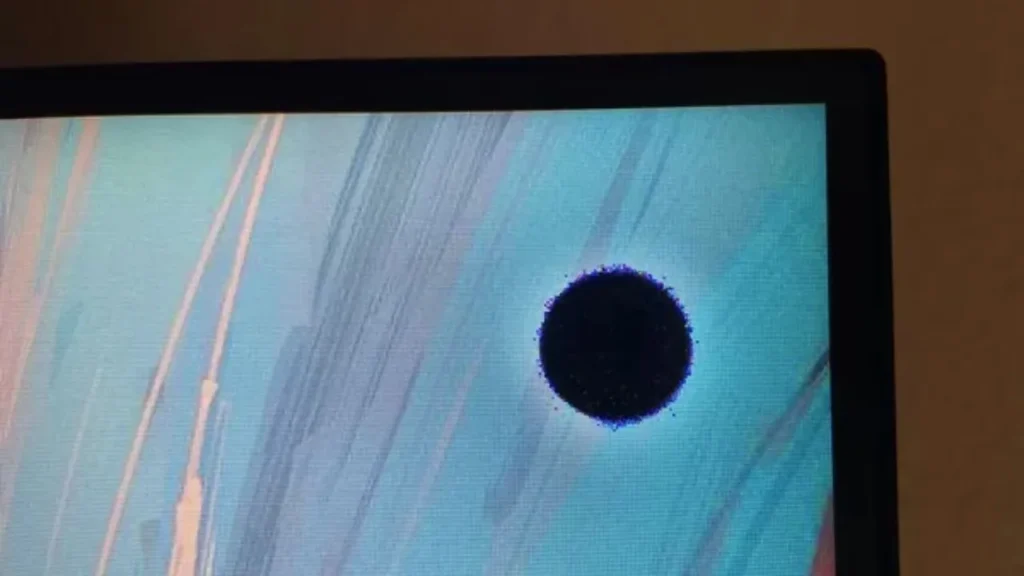
Black spots appear as small dark areas on your LED screen where no light emits. They can be:
| Type | Appearance | Cause |
| Dead pixel | Single black dot | LED chip failure |
| Stuck pixel | Single black or colored dot | Pixel stuck in “off” position |
| Dark patch | Larger dark area | Backlight or driver issue |
| Burn mark | Dark spot with discoloration | Physical or heat damage |
| Cluster | Group of dead pixels together | Module failure |
Important: If the spot is black when the screen is on but disappears when the screen is off, it is an LED issue. If the spot is visible when the screen is off, it is physical damage.
What Causes Black Spots?
1. Dead or Stuck LEDs
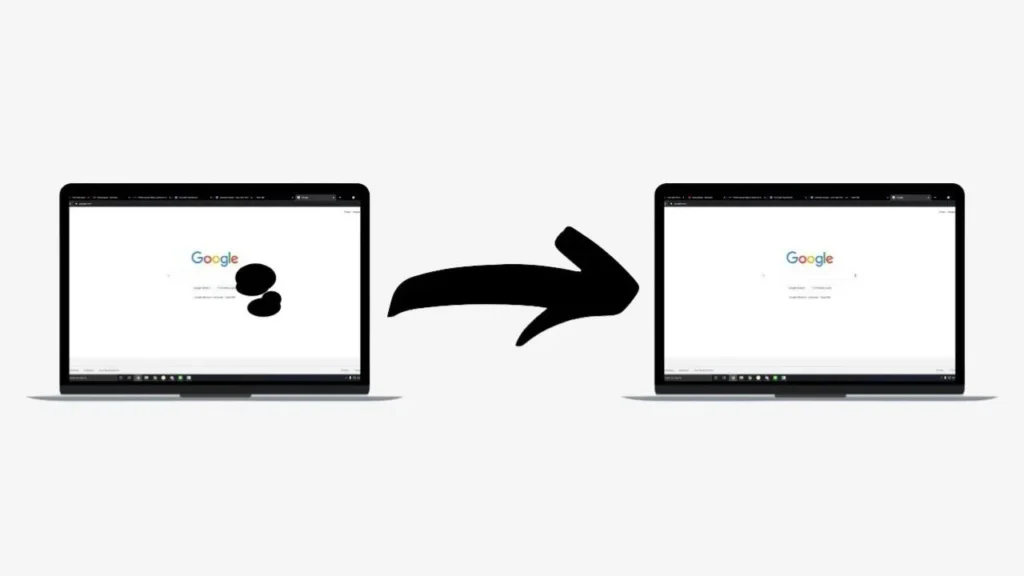
The most common cause. Each LED is a tiny light. If one fails, it creates a black spot.
Why LEDs fail:
Manufacturing defect
Static electricity damage
Old age (end of lifespan)
Overheating
Power surge
2. Physical Impact
Dropping a module or hitting the screen can break individual LEDs.
Common scenarios:
During transport (rental screens)
During installation
Accidental impact (balls, tools)
Cleaning with too much pressure
3. Moisture Damage
Water ingress can short-circuit LED drivers.
How moisture gets in:
Cleaning with wet cloth (liquid seepage)
Rain (outdoor screens with failed seals)
High humidity environments
4. Driver IC Failure
The driver IC controls multiple LEDs. If it fails, a whole section may go dark.
Signs of driver failure:
Row or column of dead pixels
Larger dark patch (not a single dot)
5. Loose Cables or Connections
Sometimes the issue is not the LED itself but the connection.
Common culprits:
Loose ribbon cable between modules
Faulty receiving card
Loose power connector
Step-by-Step Troubleshooting
Before assuming the worst, try these safe diagnostic steps.
Step 1: Identify the Pattern
| Pattern | Likely cause |
| Single black dot | One dead LED |
| Small cluster (2-5 dots) | Localized module issue |
| Row or column of black dots | Driver IC or cable issue |
| Large dark patch | Module failure or power issue |
| Spot visible when screen off | Physical damage (crack, burn) |
Step 2: Try a Power Cycle
Sometimes the issue is temporary.
How to power cycle:
Turn off the screen
Unplug from power
Wait 30 seconds
Plug back in
Turn on
If the black spot disappears → temporary glitch, fixed.
If it remains → permanent issue, proceed.
Step 3: Run a Full-White Test
Set the screen to display full white.
What to look for:
Black spots are most visible on white
You can see the exact shape and size
You can count how many pixels are affected
Step 4: Check for Physical Damage
Inspect the screen surface closely.
Signs of physical damage:
Crack in the epoxy or plastic surface
Dent or impact mark
Discoloration around the spot
If you see physical damage: The module needs replacement. Do not attempt DIY repair.
Step 5: Swap Modules (If You Have Spare)
For modular LED screens, you can test by swapping.
How to test:
Turn off power
Remove the affected module
Replace with a known good module
Power on
| Result | Meaning |
| Spot moves with module | The module itself has dead LEDs |
| Spot stays in same place | The receiving card or cable is the issue |
How to Fix Black Spots
DIY Methods (Try These First)
Method 1: Power cycle (covered above)
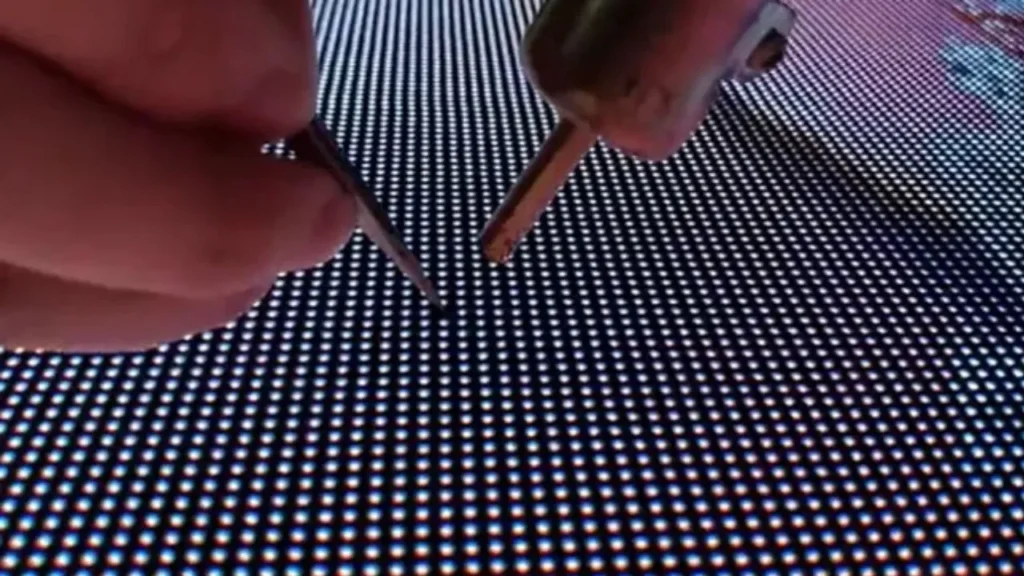
Method 2: Gentle pressure (for stuck pixels only)
Some stuck pixels can be revived with gentle pressure.
Warning: Use extreme caution – too much pressure causes permanent damage.
Steps:
Power off the screen
Use a soft microfiber cloth
Gently press on the black spot area
Apply very light pressure (like tapping a keyboard)
Power on and check
Do not try this on outdoor screens with hard epoxy coating.
Method 3: Run a pixel refresher
Some control software has a pixel refresh or calibration tool.
How to access:
Novastar LCT software → Calibration → Pixel refresh
Run for 10-30 minutes
When DIY Will Not Work
| Situation | DIY possible? | Solution |
| Single dead pixel | 🟡 Sometimes | Try pressure method; if fails, replace module |
| Multiple dead pixels | ❌ No | Replace module |
| Row or column of dots | ❌ No | Check cables; replace receiving card or module |
| Physical damage | ❌ No | Replace module |
| Moisture damage | ❌ No | Replace module (internal corrosion) |
| Large dark patch | ❌ No | Replace module or power supply |
Repair vs Replacement
| Factor | Repair | Replacement |
| Single dead pixel | 🟡 Possible (if you have equipment) | ✅ Replace module |
| Multiple dead pixels | ❌ Not cost-effective | ✅ Replace module |
| Driver IC issue | 🟡 Possible (soldering required) | ✅ Replace module |
| Physical damage | ❌ Not possible | ✅ Replace module |
| Cost | Low (if DIY) | Moderate (module cost) |
| Skill level | High (electronics repair) | Low (plug and play) |
| Time | 1-2 hours | 15-30 minutes |
Recommendation: For most users, replace the affected module. Keep spare modules on hand for quick swaps.
How to Replace a Module
What You Need
| Item | Where to get |
| Replacement module | Your LED supplier (order spares upfront) |
| Screwdriver | Hardware store |
| Magnetic pickup tool | Hardware store (for dropped screws) |
| Soft work surface | Table with cloth |
Replacement Steps
Power off the screen completely
Remove the affected module – unscrew from the rear (for front-service screens) or remove from front (for front-service designs)
Disconnect cables – power and data cables
Install new module – connect cables first, then secure with screws
Power on and test
Configure – may need to remap the module position in software
Pro tip: Order spare modules (5-10% of total) when you buy your screen. This ensures matching color and brightness.
Prevention: How to Avoid Black Spots
| Prevention | Why it helps |
| Order spare modules upfront | Ensures color/brightness match |
| Use proper cleaning methods | Prevents liquid damage |
| Handle modules carefully during transport | Prevents physical damage |
| Keep screens in dry environments | Prevents moisture damage |
| Use surge protectors | Prevents power surge damage |
| Regular maintenance checks | Catch issues early |
When to Call a Professional
| Situation | Action |
| Multiple modules affected | Contact your supplier |
| Issue returns after module swap | Could be receiving card or power issue |
| Water damage suspected | Professional inspection needed |
| Screen under warranty | Contact manufacturer first |
| No spare modules available | Order replacements from supplier |
Frequently Asked Questions
Q: Can a single dead pixel be fixed without replacing the module?
Sometimes. Try the gentle pressure method or pixel refresh software. However, most dead pixels cannot be revived and require module replacement.
Q: Will black spots spread to other pixels?
No, dead pixels typically do not spread. However, if the cause is driver IC failure or moisture damage, other pixels may fail over time. Replace the affected module to be safe.
Q: How do I prevent black spots on rental screens?
Use padded flight cases, handle modules carefully during setup/teardown, inspect before and after each rental, and keep spare modules in your kit.
Q: Does warranty cover dead pixels?
Most warranties cover excessive dead pixels (typically more than 3-5 per module) but may not cover a single dead pixel. Check your warranty terms. IvanLED offers 1-year warranty on modules.
Q: How do I know if it is a dead pixel or stuck pixel?
A dead pixel is permanently black. A stuck pixel may be black, white, or colored and sometimes can be revived with gentle pressure or software. Run a full-color test (red, green, blue, white) to see how the pixel responds.
Q: Can cleaning cause black spots?
Yes. Spraying liquid directly on the screen or using too much pressure can cause moisture damage or physical damage. Always spray on cloth first and use gentle pressure.
Need Help with Black Spots?
At IvanLED, we provide technical support and replacement modules for all our displays.
What we offer:
Troubleshooting assistance via WhatsApp
Replacement modules (keep spares on hand)
Receiving cards and cables
1-year warranty
Send us a photo of the black spots. We will help diagnose the cause and recommend the right fix.