










Part 1: Common LED Display Problems
| Problem | Typical Cause | Difficulty |
| Single dead pixel | Individual LED chip failure | Medium (replace module) |
| Row or column of dead pixels | Driver IC or ribbon cable issue | Medium |
| Entire module is dark | Power or data connection | Low to Medium |
| Flickering image | Loose cable or refresh rate | Low |
| Color distortion | Calibration or cable issue | Medium |
| No power / won’t turn on | Power supply or main power | Low to Medium |
| Water damage | Moisture ingress | High (call a pro) |
| Physical damage (crack, dent) | Impact during transport/install | High (call a pro) |
Part 2: Tools You Will Need
| Tool | Purpose |
| Screwdriver (Phillips/flathead) | Opening cabinets, removing modules |
| Multimeter | Testing power supply output |
| Spare modules & cables | For swapping to test |
| Soft brush | Cleaning dust without damage |
| Microfiber cloth | Gentle cleaning |
| Soldering iron (advanced) | For loose wire connections |
| Antistatic wristband | Protecting components from static |
Part 3: Step-by-Step Troubleshooting
Step 1: Power Cycle the Screen
Many issues are temporary glitches.
How to power cycle:
Turn off the screen completely.
Unplug it from the power source.
Wait 60 seconds.
Plug it back in and turn it on.
Outcome: If the problem disappears, it was a temporary glitch. Fixed.
Step 2: Check All Cables
Loose or damaged cables cause many display problems.
What to check:
| Cable Type | What to look for |
| Power cables | Fully seated, no damage |
| Ribbon cables (data) | Securely connected, no bent pins |
| Ethernet/network cables | Clicked in, no visible damage |
| Main power cord | Plugged in securely |
Pro tip: Unplug and re-plug each cable firmly. You will often hear or feel a click.
Step 3: Inspect for Physical Damage
Look closely at the affected area.
Signs of physical damage:
Cracks in the epoxy or plastic surface
Dents or impact marks
Dark spots visible when screen is off
Burn marks or melted plastic
If you see physical damage: Stop here. The module needs replacement, or the screen requires professional service.
Step 4: Test with a Spare Module (For Modular Screens)
This is the most effective test.
How to test:
Turn off power.
Swap the suspect module with a known good module.
Power on.
| Result | Meaning |
| Problem moves with the module → | The module itself is bad. Replace it. |
| Problem stays in the same spot → | The receiving card or cable at that location is faulty. |
Step 5: Check the Power Supply
A faulty power supply affects groups of modules.
What to check with a multimeter:
Set your multimeter to measure DC voltage (20V range).
Probe the output terminals of the power supply (typically V+ and V-).
The reading should be 4.8V – 5.2V.
| Reading | Action |
| 0V | Power supply is dead. Replace it. |
| <4.5V | Power supply is failing. Replace it. |
| 5V +/- 0.2V | Power supply is OK. Check other causes. |
Step 6: Check the Receiving Card
A faulty receiving card (or a loose data cable) can cause a whole section of the screen to fail.
How to test:
Turn off power.
Swap the suspect receiving card with one from a working section.
Power on.
| Result | Meaning |
| Problem moves with the card → | The receiving card is bad. Replace it. |
| Problem stays in same place → | The card is probably OK. Check cables or module. |
Part 4: How to Fix Specific Problems
Problem: Single Dead Pixel
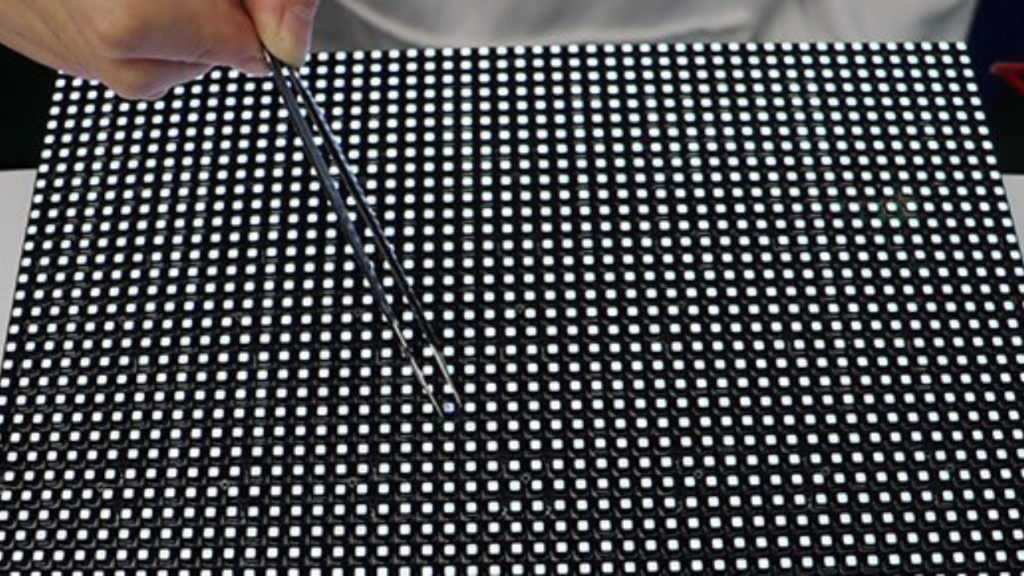
What you see: One tiny black dot on the screen when it is lit.
Cause: An individual LED chip has failed.
Can you fix it? ❌ Not practically. Dead pixels cannot be repaired individually.
Solution:
If under warranty, contact the manufacturer.
If multiple dead pixels appear, replace the entire module.
Problem: Row or Column of Dead Pixels
What you see: A horizontal or vertical line of dead pixels across a module.
Cause: Driver IC failure on that module, or a loose ribbon cable.
Solution:
First, check and reseat the ribbon cable for that module.
If the line remains, the module needs replacement.
Problem: Entire Module is Dark
What you see: One complete module (or panel) has no image.
Troubleshooting flow:
Dark module?
    │
    ├─ Check: Are neighboring modules also dark?
    │   ├─ Yes → Power supply or data signal issue upstream.
    │   └─ No → Likely just this module or its direct connections.
    │
    ├─ Check: Power cable connected? → If no, reconnect.
    ├─ Check: Data cable connected? → If no, reconnect.
    ├─ Test: Swap module with a known good one.
    │
    └─ If module works elsewhere → Original module is bad. Replace.
Problem: Flickering Image
What you see: The whole screen or a section flickers.
Cause:
Loose data cable (most common)
Low refresh rate setting
Power supply issue
Solution:
Check and reseat all data cables.
In your control software, increase the refresh rate to 1,920 Hz or higher.
If a specific section flickers, check that section’s power supply.
Problem: Color Distortion
What you see: Colors look wrong – too red, too blue, or washed out.
Cause:
Calibration settings
Loose ribbon cable
Aging LED chips
Solution:
Run color calibration in your control software.
Check and reseat ribbon cables.
If a specific module has wrong colors, replace that module.
Problem: No Power / Screen Won’t Turn On
What you see: The entire screen is dead.
Troubleshooting:
Check the main circuit breaker or fuse. Is it tripped?
Check the main power cord. Is it plugged in?
Check the main power supply unit (PSU) with a multimeter.
If the main PSU is dead, replace it.
Important: Do not attempt to repair a power supply yourself. Replace it with an identical model.
Part 5: Repair vs. Replace – Cost Comparison
| Component | Repair Cost (DIY) | Replacement Cost | Recommendation |
| Single dead pixel | Not possible | 50–50–200 (module) | Replace module if noticeable |
| Module (general) | Not cost-effective | 50–50–300 per module | Replace module |
| Power supply | 15–15–30 (repair kit) | 30–30–100 | Replace (safer) |
| Receiving card | Not possible | 20–20–80 | Replace |
| Ribbon cable | 5–5–10 (repair) | 10–10–20 | Replace |
| Physical damage | Not possible | 50–50–300 per module | Replace module |
| Loose connection | 0–0–10 (solder) | N/A | Repair (if skilled) |
Part 6: Soldering Loose Connections (For Advanced Users)
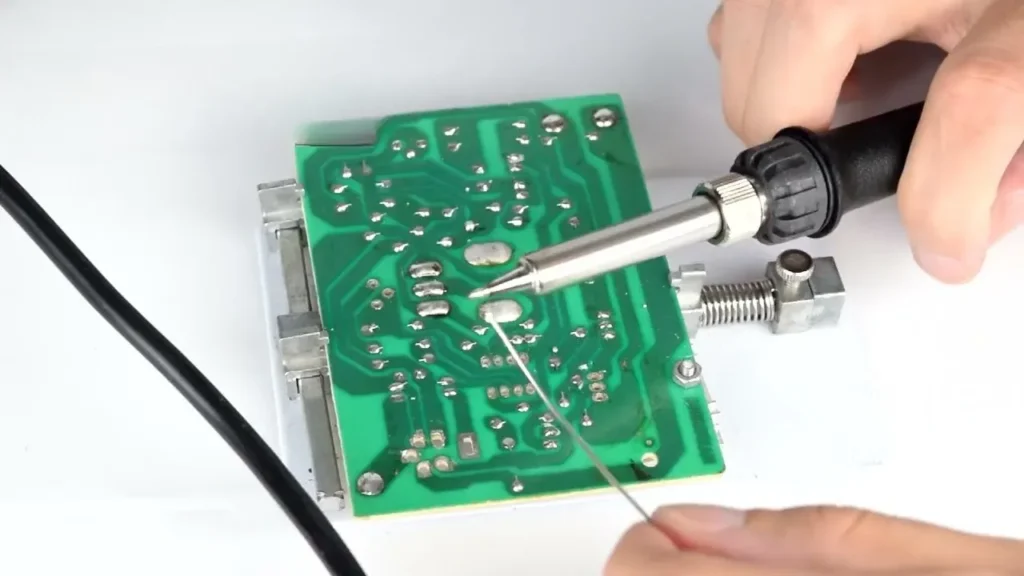
If you have soldering experience, you can repair loose connections.
Step-by-step:
Identify the loose connection using your multimeter.
Clean the surface with a soft brush (no hard fabric).
Apply flux to the wire and soldering surface.
Heat your soldering iron.
Using tweezers, hold the soldering wire and touch it to the joint.
Apply the hot soldering iron for approximately 2 seconds.
Remove the iron when you see a shiny joint.
⚠️ Warning: Do not leave the soldering iron on the PCB for too long. It can damage other components.
Part 7: Prevention – How to Avoid Future Problems
| Prevention Tip | Why it helps |
| Keep spare modules | Fast swap when a module fails |
| Use surge protectors | Prevents power spike damage |
| Clean screens regularly | Dust buildup can trap heat |
| Ensure proper ventilation | Overheating kills electronics |
| Handle modules carefully | Prevents physical damage |
| Train installation crew | Reduces accidental damage |
| Update control software | Fixes bugs, improves performance |
| Document cable connections | Easier troubleshooting later |
Pro tip: When you buy an LED screen, order 5-10% spare modules. This ensures you have matching color and brightness when a replacement is needed.
Part 8: When to Call a Professional
| Situation | Why call a pro |
| Water damage | Internal corrosion requires expert cleaning |
| Multiple module failures | Could be main controller or power distribution |
| Screen still under warranty | DIY repairs may void the warranty |
| No spare parts available | Professional may have access to parts |
| Not comfortable with electronics | Safety first |
| Screen is high or hard to access | Requires lift equipment and safety training |
| High-voltage components | Risk of serious injury or death |
Frequently Asked Questions
Q: Can a single dead pixel be fixed without replacing the module?
No. Dead pixels cannot be repaired individually because they are sealed within the module. The entire module needs replacement.
Q: How do I know if the problem is the module or the receiving card?
Swap the suspect module with a known good one. If the problem moves with the module, the module is bad. If the problem stays in the same spot, the receiving card or cable at that location is the issue.
Q: Can I repair a power supply myself?
Not recommended. Power supplies contain capacitors that can hold a dangerous charge even when unplugged. Replace it with an identical model instead.
Q: My screen has water damage. What should I do?
Turn it off immediately. Do not turn it back on. Contact a professional. Do not attempt DIY repair on water-damaged electronics.
Q: Does DIY repair void my warranty?
It can. Check your warranty terms. IvanLED’s warranty covers manufacturing defects but not damage from improper repair. If in doubt, contact us first.
Q: Does IvanLED provide spare parts?
Yes. We offer replacement modules, power supplies, receiving cards, and cables for all our displays. Contact us with your model number.
Need Help with Your LED Display Repair?
If you have tried the steps above and still have issues, or if you need spare parts:
IvanLED provides:
Troubleshooting support via WhatsApp
Replacement modules and parts
Technical documentation
1-year warranty on new parts
Send us photos or videos of the problem. We will help diagnose the issue and recommend the right fix or part.