









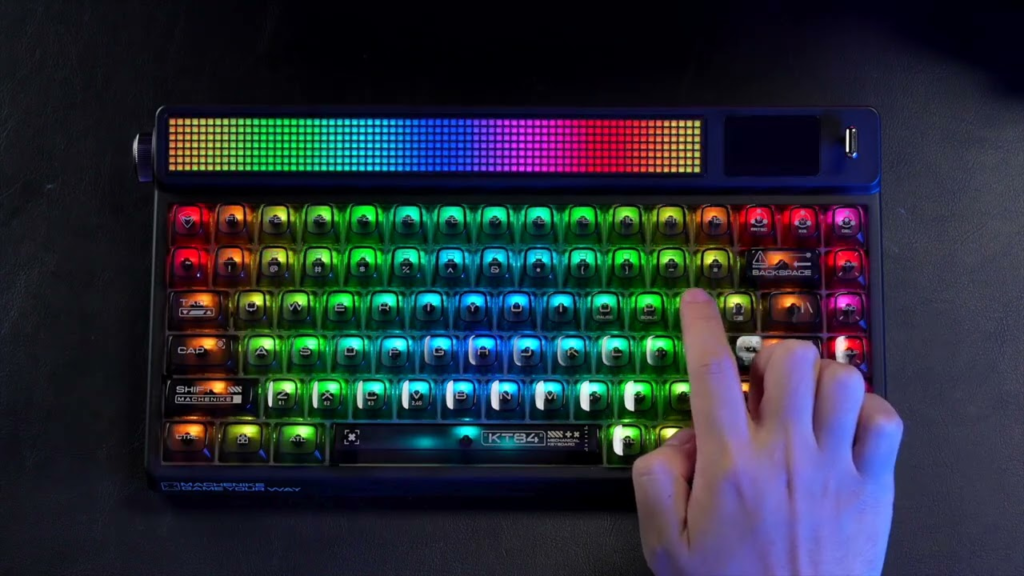
Step 1: Connect the Keyboard to the LED Display
Here, we shall cover six critical process. Remember, this is a critical step in the LED display editing process. You will follow these key steps:
- Firstly, attach the keyboard to the display’s controller through the appropriate port, mostly USB or PS/2.
- Turn on the system, and the display ought to recognize the keyboard.
- Press the assigned key (like “ESC” or “SET”) to get into editing mode.
- Make use of the keyboard to type the message, traverse menus with the arrow keys, and validate changes with “ENTER.”
- Ensure to save your edits before exiting the page.
- The new message will emerge on the screen. In case the keyboard isn’t responsive, check on compatibility issues or try reconnecting.
Step 2: Access the Editing Mode or Menu
Before you start editing, remember, accessing the editing menu will also vary depending on the LED screen module.
- Get into editing mode by pressing the assigned key; mostly “SET,” “MENU,” or “ESC”; relying on the controller model.
- While in editing mode, make use of the arrow keys to navigate through the menu alternatives.
- Pick the message area or subject that you want to update.
- Input your new message using the keyboard, and use “Backspace” or “Delete” to make anyalterations.
- Subsequently after editing, press “ENTER” or the secure key to validate thecorrections made.
- Leave the menu to display the updated text on the screen.
- At all timesscan the display’s manual for particular key functions and menu options.
Step 3: Edit the Text or Context
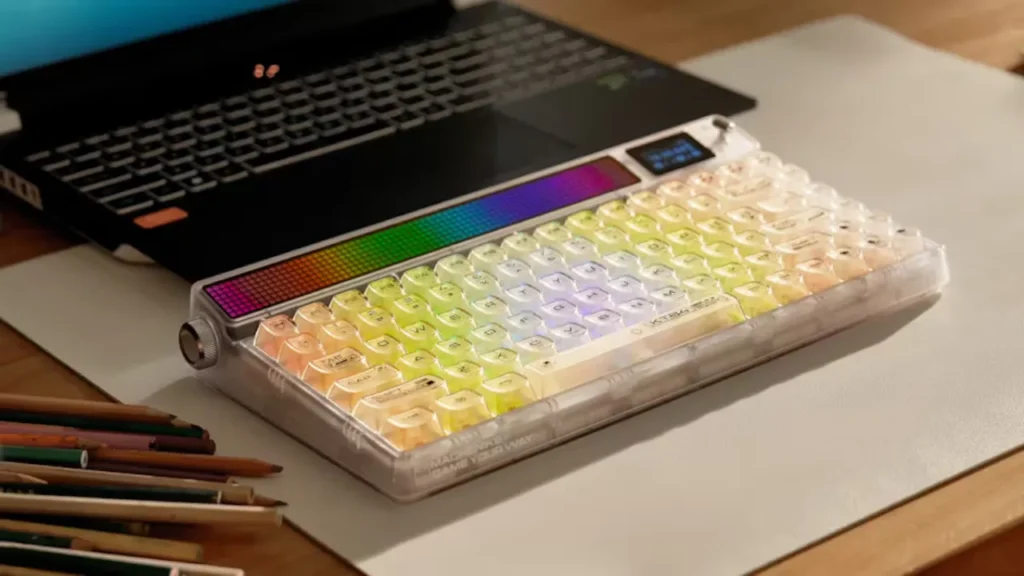
- Make use of the arrow keys to mark out the subject or area you want to aliterate.
- Startkeying-in your new text directly using the keyboard.
- Use “Backspace” to delete errors and make corrections. Make sure your text fits within the display’s maximum length.
- You may also be in a position to change effects such as scrolling speed or direction, depending on the display’s capacity.
- Upon editing, press “ENTER” or the save key to put in the corrections.
- Leave the menu to show the revised content on screen.
Step 4: Adjust Display Settings (Optional)
- Get into the settings or edit mode by pressing the suitable keys, such as “MENU” or “SET.”
- Make use of the arrow keys to scroll to the display settings such as brightness, text direction, or the effects.
- Choose the setting option you want to change and use the keyboard to change the value or select from available options.
- After making changes, click “ENTER” or the save key to confirm the changes made.
- Leave the menu option to affect the new settings.
- Look into the display’s manual for particular key functions and available error management features.
Step 5: Save and Display the Edited Message
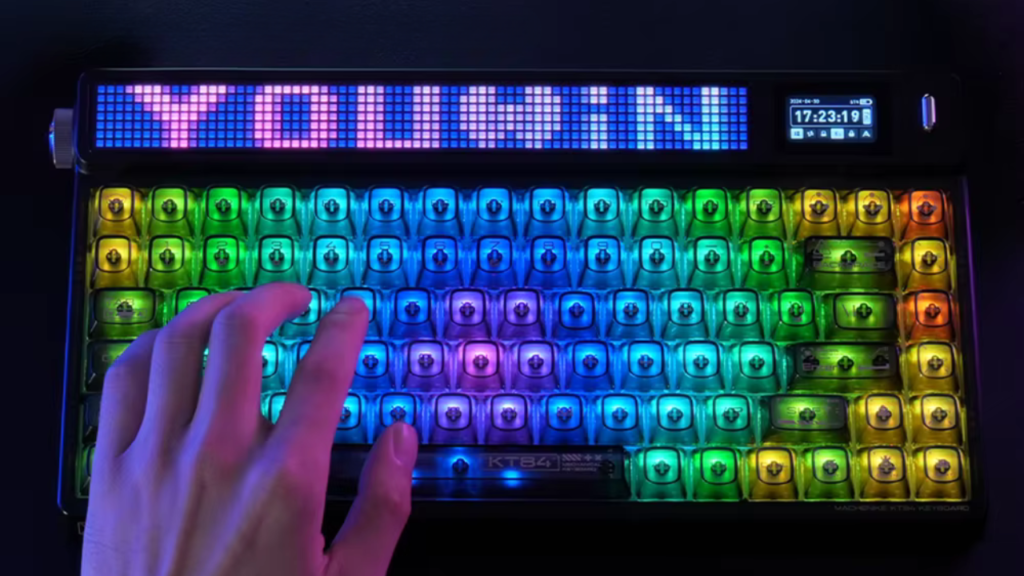
- Click on the correct keys; mostly “ENTER,” “SET,” or “OK”; to affect the corrections made after editing.
- Other systems may call forth for confirmation; follow the on-screen directions if there need be.
- Once saved, leave the editing or browse mode by clicking on “ESC” or anassigned exit key.
- The updated textought to now appear on the LED screen.
- If the text doesn’t display as intended, double check for errors or go back to editing mode.
- At all times wait to certify that the system processes and updates the display with the new content before disconnecting.
Conclusion
As you can see, editing an LED display with a keyboard is systemic and well organized at the same time simple.You can quickly update messages by connecting the keyboard, accessing the menu, typing content, adjusting settings, and saving changes.
It’s a practical method for instantaneous edits with no extra software, and it is perfect for straightforward, on-sthe-spot display management.
“Looking for an LED display with intuitive keyboard control and easy content management? Explore IvanLED’s range of poster displays and rental screens designed for hassle-free operation.”