










Preparing to Write on an LED Display Board
Selecting the Appropriate Software
You should use LED software that supports your LED board, for example LED Edit or Nova LCT. IvanLED recommends certain tools that work well with its products, enabling users to create and manage content without problems.
Connecting to the LED Board
You can connect your PC to the board using a USB, Wi-Fi or Ethernet cable. IvanLED’s commercial LED boards give customers plenty of ways to communicate with the displays in various situations.
Understanding Display Specifications
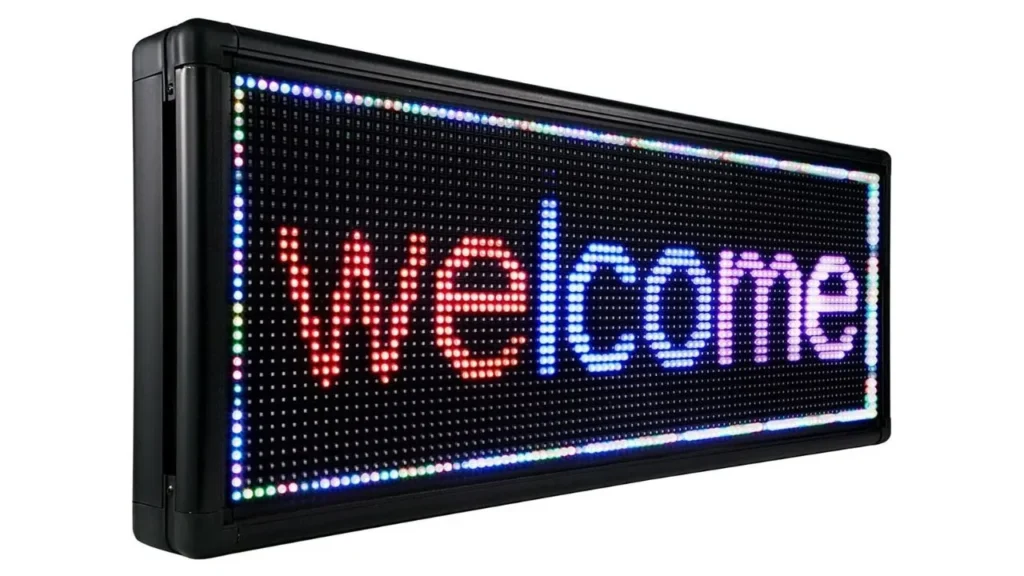
It’s important to review the pixel pitch, resolution and the formats the board works with. With this information, you can shape your content to appear clearly and stand out on big outdoor displays.
Step-by-Step Guide to Writing on LED Display Boards
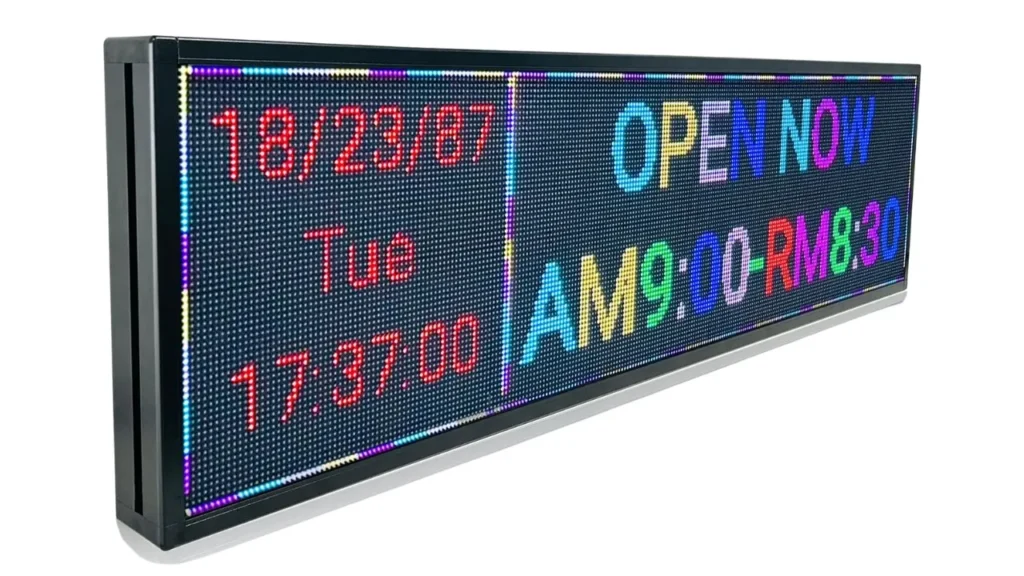
Step 1: Launching the Programming Software
First, open the software that you will use to program your LED display. When working with IvanLED boards, use either LED Studio or Nova LCT to get the best compatibility. Their interfaces are easy to use, so you can take care of your content swiftly. Before you begin, update both the drivers and firmware to prevent the software from having issues with the board’s firmware.
Step 2: Configuring Display Settings
Configure the display’s settings such as its resolution, screen size, frequency of display cycles and color depth. Make sure all the settings on the software suit your LED board to prevent errors. In case you are not sure about your device’s details, seek help from IvanLED’s documentation or their support experts.
Step 3: Creating the Message Content
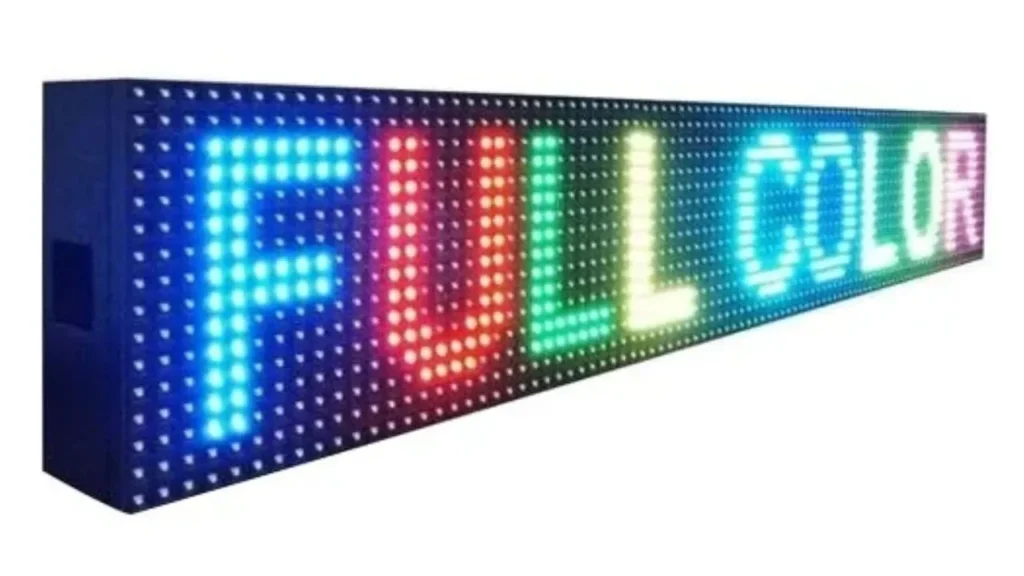
Make use of the content editor to write your message. Pick your preferred font style, size, color, how fast you want the text to scroll and in which direction. If you can use multimedia in your board, add some animations, transitions or logos. Try to make your messages quick and eye-catching.
Step 4: Previewing the Message
It’s a good idea to view your content in the software before delivering it to your board. It gives you a preview of your work, allowing you to see possible mistakes with spelling, layout or color. Fix necessary issues now to ensure the final result looks good and can be understood from a distance.
Step 5: Uploading the Message to the LED Board
After you finish the content, upload it onto the LED display. The board uses USB, LAN or Wi-Fi, so you should connect it using the appropriate method. Make sure the transfer is processed successfully. On networked boards, use the software to deliver a message to all screens in the group to prevent discrepancies in information.
Step 6: Saving and Scheduling Messages
Make sure to store the message in your software when your content is uploaded. Take advantage of scheduling to decide when your content should start playing automatically. It becomes important for facilities, schools or transit systems that need to update information regularly. With cloud-based systems, managers can access business information anywhere and manage the operations at different places easily.
Conclusion
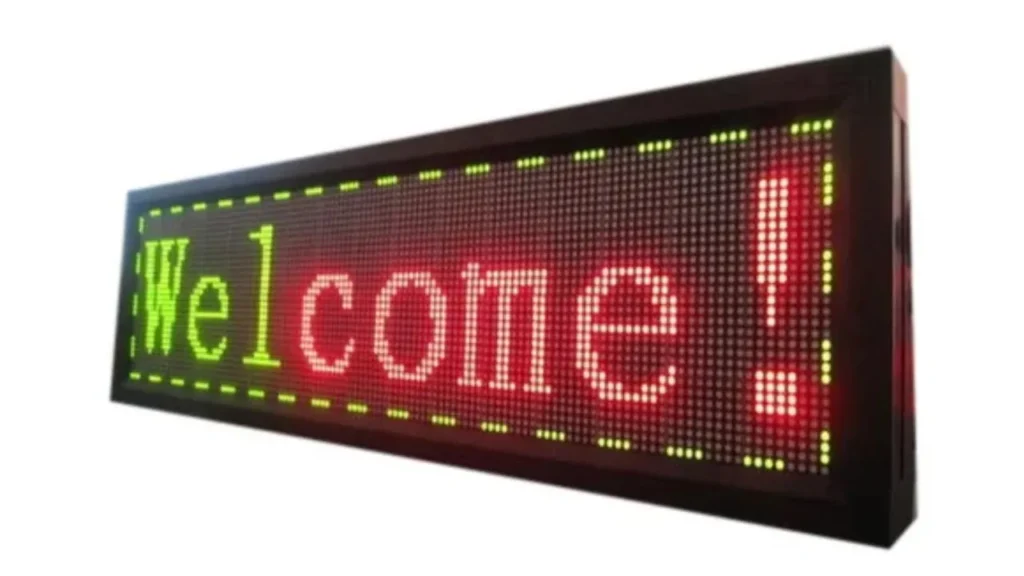
Working with writing on LED screens isn’t difficult at all. You can give effective messages if you have the correct tools, knowledge and planning. Clear communication matters in all sectors such as retail, education or transit. Are you looking for ways to make your displays better? Let IvanLED assist you with LED lighting that matches what you require.
FAQs
What is the best software for programming LED display boards?
Some of the most popular cloud-based options are LED Studio, NovaLCT and VNN. IvanLED suggests using its own tools so customers can use the products more conveniently.
Can I use images or videos on my LED display board?
It is true that a lot of LED boards are compatible with multimedia. Let your application let files like MP4, JPG and GIF be uploaded for more animated displays.