










Step 1: Check Power Supply
Now, even before you think of where the dim LED display problem may arise from, start with the power supply. Well, this is the easiest and straightforward step.
Here is how you can go about this process.
- For you to fix a dim LED display, the very first crucial move is to check the power supply for any damage or faults.
- Confirm whether the power cable is firmly connected to the power source and that it is not corroded or worn out.
- You should note that when a cable is loosely fixed to the power source or damaged, it can cause voltage drops, making the display flicker.
- Also, you can connect another device to the power source to check if it’s faulty or not.
- In case the display is using an external power adapter, examine it for any faults and whether it’s supplying voltage as intended.
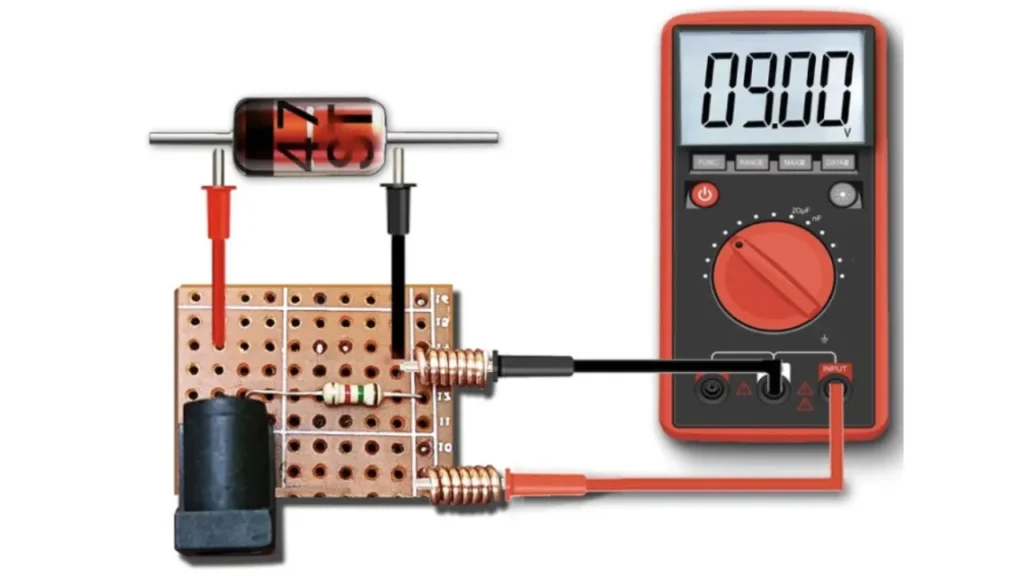
- Use a multimeter to measure voltage output from the power source and whether it corresponds to the display’s voltage requirement.
- Note that a voltage below the required capacity as per the manufacturer’s manual for the display can cause dimming.
- Ensure that the power cable is not bent in any form, as this can restrict the current flow to the LED panel.
- If your LED display runs on a backup system, you need to perform regular inspections to detect damage that may hinder current flow.
- Note that replacing faulty power supply systems with working systems always fixes the display’s dimming issues.
- A strong power source and supply is a guarantee that the display gets consistent supply of power thus getting rid of dimming
Step 2: Inspect Brightness Settings
Assuming the power to your LED panel is okay, it is now time to move a step further. That is, you can check the LED screen’s brightness settings.
Well, accessing the brightness settings may vary from one manufacturer to another. Therefore, we recommend you review the LED screen manufacturer manual.
However, for most LED screen displays, this is how you can handle this process:
- It is crucial to inspect the brightness settings when the display is dimming, as this may solve the issue.
- Most modern LED displays have incorporated menus that help users have access to and configure brightness levels.
- Note that this menu option is easily accessed by using the remote control to navigate to the settings section.
- Open the display settings section, and if low, increase it slowly to see if there are advancements in the screen brightness levels.
- Additionally, look for any power-saving mode features, and if on, they should be deactivated as this also affects the display’s brightness.
- In case your display includes user profiles, make sure that it’s configured to a mode customized for visibility, like “Standard”.
- For displays linked to external controllers, ensure that the output brightness settings are also accurately set in the source device.
- Miscommunication between the controller and the LED display can, at times, lead to low brightness levels, thus dimming.
- The correct configurations on the display settings ensure clear visibility and a user-friendly display.
Step 3: Examine LED Modules and Connections
As we progress, you will realize that the process of fixing dim LED displays keep getting more complex. Therefore, this may require specialized tool and equipment.
Note: If you are not sure, don’t open the dim LED display since it may void your warranty. That is to assume your LED screen is still under warranty.
Any, here is how you can handle this stage:
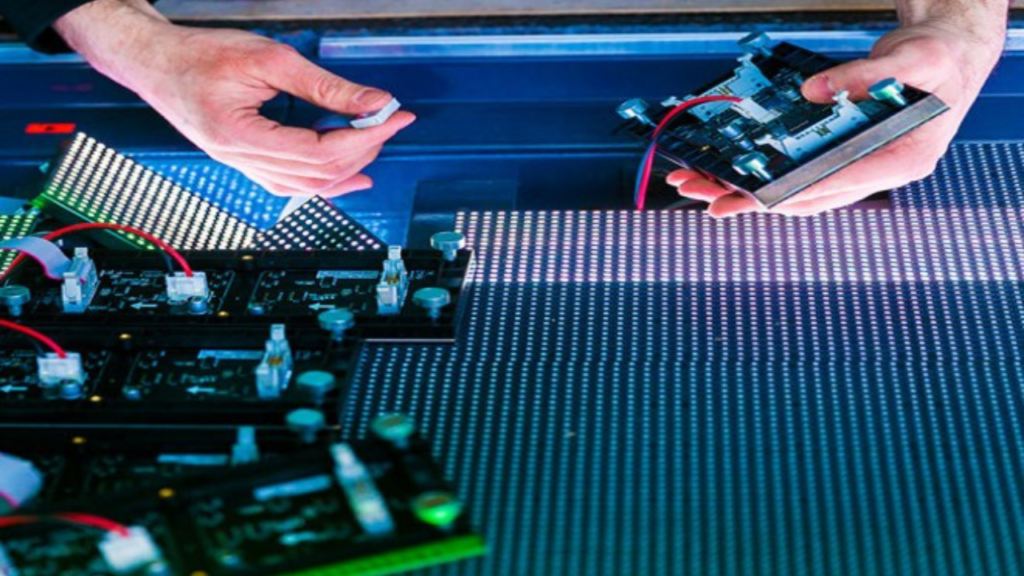
- Turn off the display and cautiously open the access panel to examine the internal components for any faults or errors.
- Examine closely the wiring systems, connectors between the controller, and LED modules, as these may give you an idea of the faults.
- Loose, rusted, or partially connected cords can restrict power delivery, making display parts appear dim upon use.
- Intricately disconnect and reconnect each cord to ensure that the entire system is working and running properly.
- Closely examine the LED modules for signs of damage, burnt-out LEDs, staining, tarnishing, or physical crevices.
- Note that if one LED module is dimmer than the next, it may affect the entire brightness of the LED display.
- Make changes on the module with a recognized working module from another section of the display to check on its functionality.
- Examine for dust and dirt on connectors and contacts, as these can disrupt the overall performance and brightness of the display.
- Wipe contacts and connectors using a soft brush or electronic contact cleaner to ensure no obstructions and proper functionality.
- Make sure that all modules are fixed correctly and aligned to allow steady current flow, preventing dimming of the LED display.
- Identify and replace damaged modules or secure loose connections to always resolve uneven or dim display faults.
- Addressing these hardware problems is crucial for restoring full brightness and ensuring durability for the LED display system.
Step 4: Check the Display Controller
Let’s now explore how to fix dim LED display from the controller. Well, this also requires a little bit of expertise and experience. Here is how you can fix LED display dimming problem from the controller.
- You need to restart the controller to remove a temporary glitch; this can at all times reset settings and clear smaller errors.
- In case the controller has a customization menu, check that the brightness output levels and display modes are set correctly.
- Make sure that the firmware is modern, as corrupted or outdated firmware may cause display issues, including lowered brightness levels.
- Probably inspect the controller using another working LED panel on the dim display setting to correctly scrutinize and separate the problem.
- Also, you have to examine the data cords between the controller and the LED display for any signs of damage or faults.
- You need to check for any faulty indicators or status lights on the controller that may signal an error early enough for fixing.
- In case an error is detected upon scanning, consult the controller’s manual or contact the manufacturer for guidance on use.
- A misconfigured controller can greatly lower brightness; therefore, identifying and correcting controller problems is vital to restoring proper LED display performance.
Step 5: Evaluate Environmental Conditions
Don’t ignore the environment where you have installed the LED display. Surprisingly, this is yet another element that can cause dimming problems in your LED display. But, how can you handle this situation?
- You have to examine and inspect the environmental conditions surrounding the LED display, as this can affect its operation and brightness.
- Make sure that the display has enough ventilation that is proper and that cooling fans, if available, are operating correctly.
- Damp conditions can also greatly affect the internal components, causing rusting or electrical problems that may lead to dimming.
- Check the LED display’s location for any signs of water leakage, condensation, or poor sealing, mostly in outdoor or semi-outdoor spaces.
- Examine the LED screen’s surface for dust or smudges, which may block light output and thus make the display appear dim.
- Wipe off the surface carefully with precision using a microfiber cloth and an appropriate screen wiper that doesn’t leave stains behind.
- Moreover, research the impact of strong ambient lighting since sunlight can make even a bright display look dim because of the reflections.
- You should place sunshades, anti-glare coatings, or relocate the display so as to boost visibility away from sunlight.
- In cold environments, LEDs may take an elongated time to reach full brightness, so allow the system time to warm up slowly.
- By examining and talking about these environmental factors, you ensure that the display operates under perfect conditions with no external obstructions.
- This move is especially vital for outdoor displays exposed to a constantly changing weather conditions.
Step 6: Test with Different Input Signals
Have you tried testing your screen with different input signals. Well, the problem could be right here. Let’s see is this can fix your problem:
- You need to start by changing to a different input source or device and get to see whether the brightness changes.
- Use a known working video file or control software with default brightness levels to delete signal formatting as an element.
- Moreover, you can run several input types if reinforced, to rule out signal degradation through a certain port as a cause.
- Look at the brightness and colour settings, display options on the input device to make sure it’s not sending restricted output.
- By chance, the LED display employs a content management system; reevaluate those settings for any dimming configurations or night mode settings.
- You also need to check whether the display settings are on the wrong resolution, as this may also affect dimming.
- Keeping tabs on the display’s response to different sources helps narrow down the issues to either internal components or the external input.
- You have to do this in order to set apart hardware problems from signal-related issues on the LED display.
Step 7: Replace Faulty Components
At times, the LED display dimming could be due to worn out components. This will require technical expertise as well. You must identify which components are faulty and replace with the same specifications.
Here is how you can fix the dim LED display:
- Reexamine which parts could have shown evidence of failure, as this may include LED modules, data cords, or the controller.
- A faulty power source and cables have to be replaced immediately to prevent further damage to the LED display.
- You should use a working multimeter to check on voltage output and replace it if it’s below the needed specifications.
- A damaged LED module or panel, especially that that is stained or flickering, should also be replaced with compatible units.
- Ensure that the replacements match the original specifications as per the manufacturer’s guide to keep up uniform brightness and colour.
- Also, check on data cords for wear or loose connections, as damaged data cables can obstruct power transmission, leading to dim displays.
- You have to ensure that any new controller is correctly customized after removing the faulty and damaged ones.
- Whenever you restore parts, always turn off the system and follow the manufacturer’s guidelines for installation to avoid damage or injury.
- Once damaged components have been replaced, power on the system and check the display for brightness consistency across all the sections.
- Restoring damaged parts is always the most efficient and effective way to resolve problems of consistent dimming.
Conclusion
As you can see, fixing dim LED display can be a simple or complex problem depending on the cause. Some may require simply changing the cables, whereas others will require you to access and test components of LED display.
At IvanLED, we provide online technical support for all your LED display problems. If you are having problems with your LED display panels, our team is ready to help – contact us now.