










Step-by-Step Connection Guide
· Power Off Devices:
To get started, make sure to turn off your MacBook Pro and the Apple LED Cinema Display. Shutting down the TV means there won’t be any potential issues during setup, and all cables will be safely connected, free from potential electrical risks.
· Connect the Adapter:
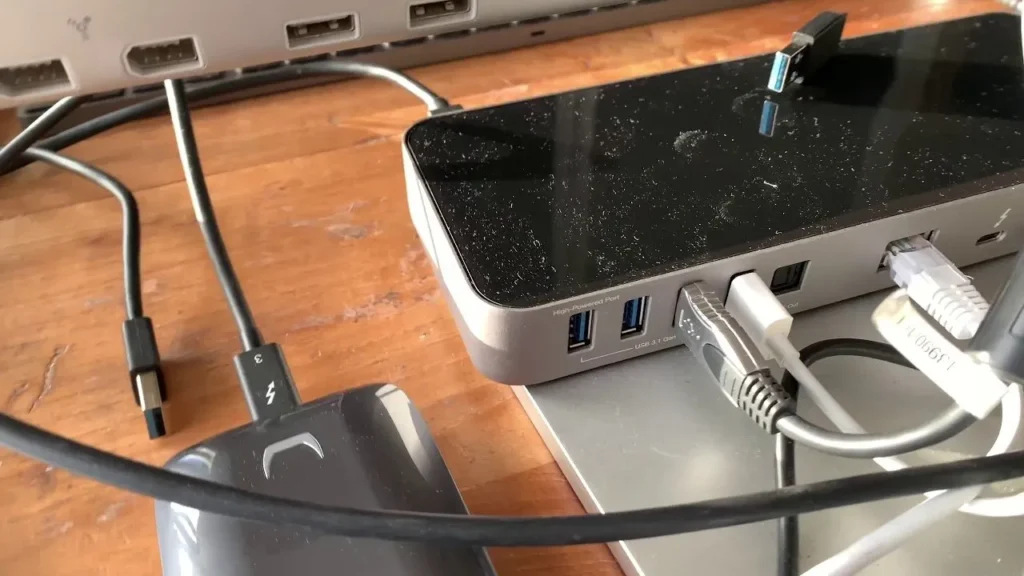
Find out if your MacBook Pro’s port is USB-C or Thunderbolt, then attach the appropriate Mini DisplayPort adapter. Confirm that the TV set is certified to display videos properly. You need to perform this step to attach the Cinema Display’s Mini Display Port to your MacBook.
· Attach the Display:
Insert the Apple LED Cinema Display’s Mini DisplayPort cable into the adapter. Ensure the connection is strong. Make sure you select the proper input on your MacBook Pro for the video to display.
· USB Connection:
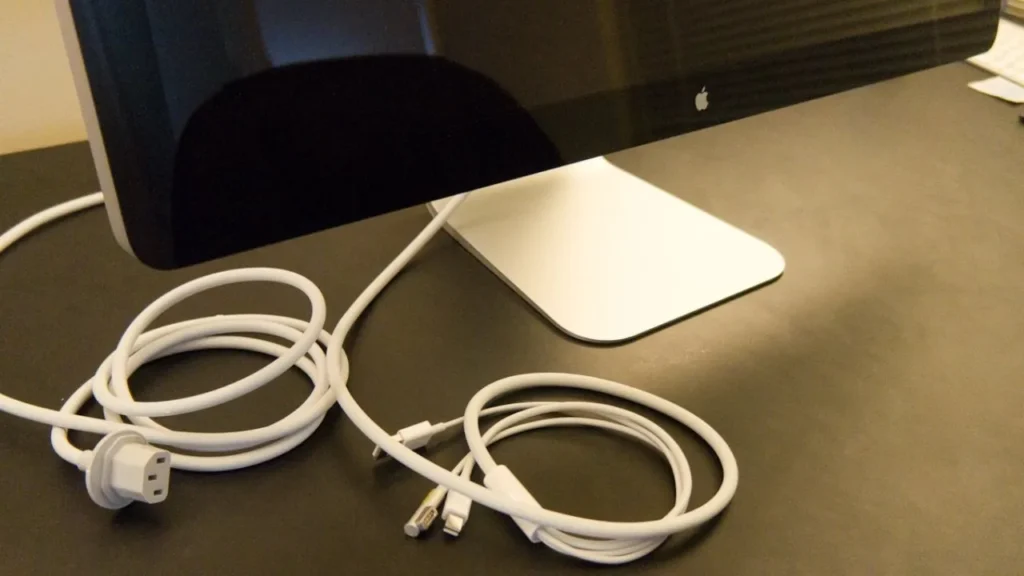
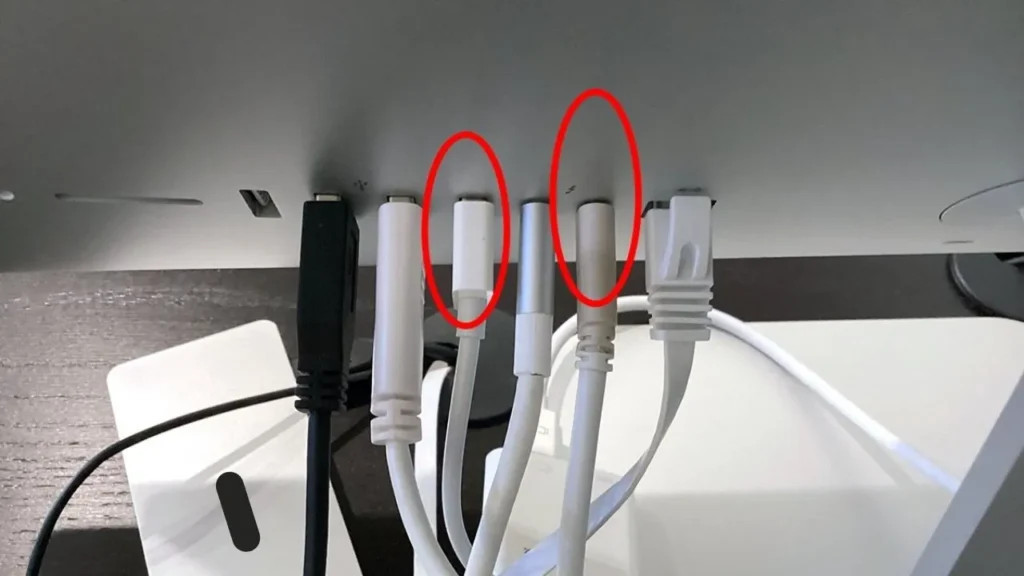
Attach the USB-C to USB-A adapter to the USB-C port and then plug in the USB-A cable from the display. As a result, these functions, such as adjusting display brightness, having a built-in camera, and USB connectivity, are included in the Cinema Display.
· Power On Devices:
After connecting the cables, turn on your MacBook Pro and the Cinema Display. The video signal is being detected and begins the display. If an error occurs, review the connections and also make sure the adapter is compatible.
· Configure Display Settings:
Open the “Displays” preference in “System Settings” on your MacBook. It’s possible to either extend your desktop or show your screens side by side. Optimize the picture’s resolution and brightness according to your preference to give you the best experience.
Optimizing Display Functionality
· Brightness and Volume Control:
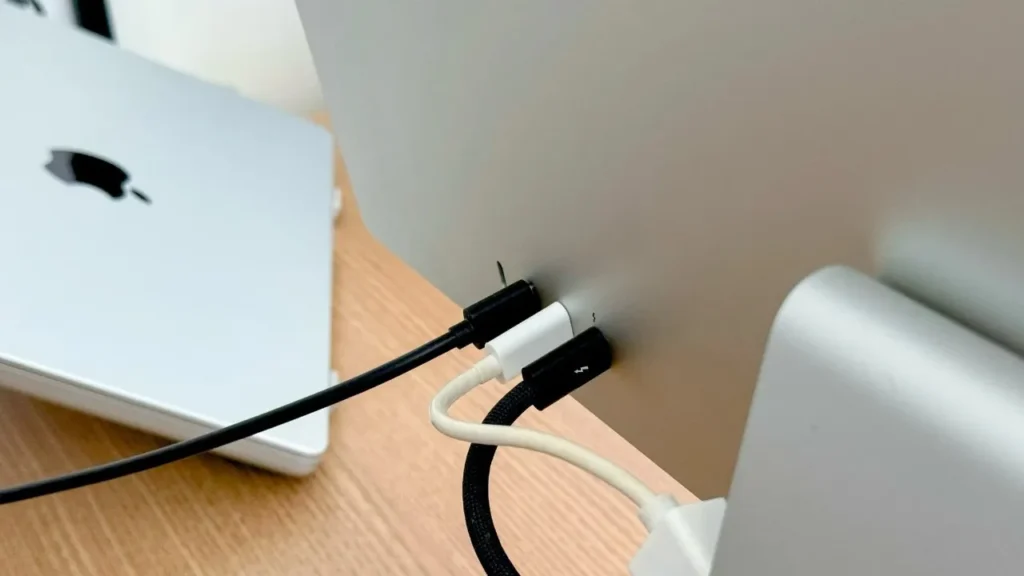
Ensure that the display is connected to the MacBook through its USB cable to adjust both brightness and volume. It turns on the built-in settings that macOS can use. To adjust the brightness or volume, use the keyboard or “Displays” settings from your MacBook.
· USB Hub Utilization:
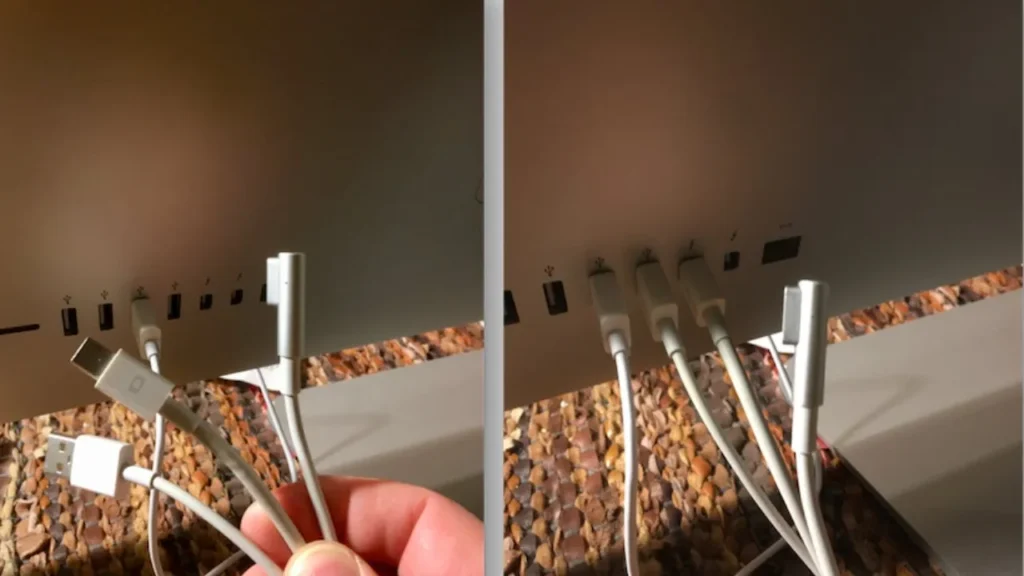
There are three USB ports built into the Apple LED Cinema Display. After connecting the USB cable from the dock to your MacBook, you can use ports for basic desktop tools, like keyboards, mouse and flash drives.
· iSight Camera and Microphone:
When you connect the USB cable, the display will also launch the built-in iSight camera and microphone. You can use them during your calls in FaceTime, Zoom or Teams. Within your MacBook’s system and app, choose the Cinema Display camera and mic.
Conclusion
When connecting your digital display to a MacBook Pro, first use the correct adapter, then the USB connection for more options, and set up the screen in macOS. It allows everything to function smoothly, especially when using USB hubs and cameras.IvanLED is a well-known company that specializes in LED lights.