










Methods to Change Text on LED Display Boards
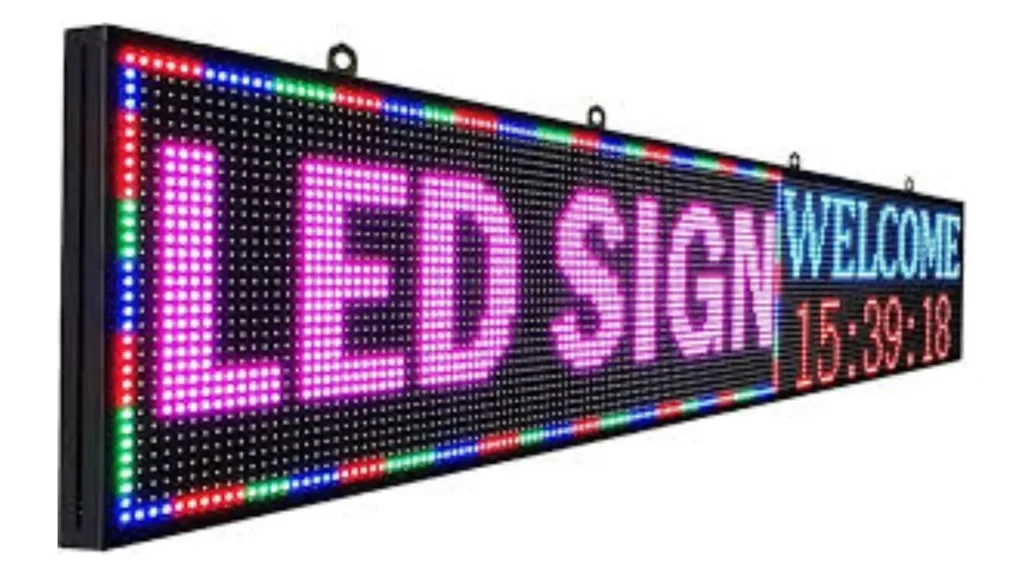
Simple and steady ways can be used to change the text shown on an LED display board. You can sort and filter observations with different tools, some of them manual and some available on a computer.
Manual Methods
- Using Remote Control:
You are able to upgrade basic LED signs by using a remote control. You should use it when the board has only one item. Hold the remote so it is directed at the board, and then enter the new message. A small number of models have limited abilities when it comes to characters or scrolling through text.
- Control Card Operation Panel:
A few LED boards are designed with a control panel already attached. You can add or modify your messages using this panel. You should follow the steps given on the keypad and pick the necessary options. It’s best for creating compact scenes that fit in small areas.
Computer-Based Methods
- Wired Connections:
You should directly link the computer to the LED board with a data cable. Usually, USB and RS232 are the supported ports for these machines. It is important to set up the manufacturer’s software to use the LED display. The information you have created can be placed on the board right away.
- Wireless Connections:
Several advanced LED boards can be controlled through Wi-Fi or Bluetooth. The software can be accessed using a computer or a mobile device without wires. You will be able to share updates on the system right after you log in. Using this system cuts down on downtime and matches the needs of big outdoor screens.
USB Flash Drive Method
- Creating Content on a Computer:
It is possible to make content for your LED screen with the help of software on your computer. When the message is ready, save it according to the needed format. After connecting the USB drive, put the file into it and transfer it to the computer. After that, put the USB into your LED board and upload the program as prompted in the software.
- Transferring to LED Board:
Use the format of templates that your LED control system needs. Simple steps for the process are shown on the TV screen; follow them.
Step-by-Step Guide to Updating Text
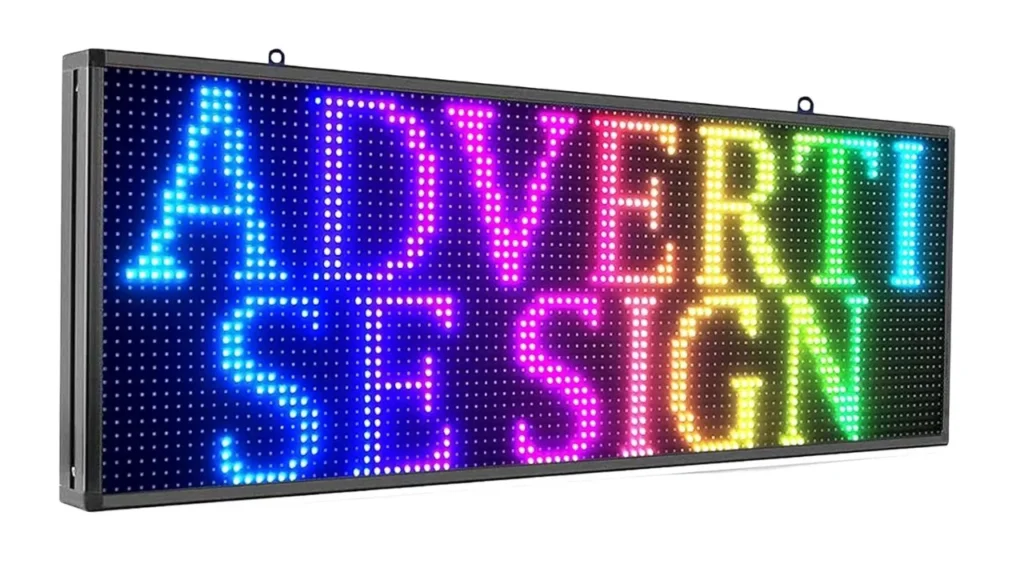
Preparing the Content
Getting the content organized for the users, not just in lessons, but in other departments. Your first step should be to write a message that is straightforward. Ensure your information is important to who you are trying to reach. Make the text simple and short enough for everyone to understand. Pick colors that are highly noticeable on your LED display board. Be careful not to use any symbol or character that is not shown by your monitor.
- Choosing the Right Software:
Instead of a third-party solution, use the software given by the LED screen manufacturer. Tools used often are NovaStar, LED Studio, and HDPlayer. You may use cloud services to handle updates if you are not in the office. It is important to confirm if your software works with your LED display.
- Designing the Message:
When selecting fonts, use large type to make the text understandable from far away. Make each screen short and simple. If your board has this option, you can use scrolling messages or flashing text. Check your design with your LED software before you start uploading it.
Connecting to the LED Display
- Establishing a Connection:
You can attach directly using USB, also using LAN, Wi-Fi, or cloud solutions. The first thing to do is adjust the display’s setting to off. Plug in your USB or connect with the wireless network. Select the number for the correct communication port as shown in the LED controller’s manual. Be sure the device spots the LED board before you proceed.
- Uploading the Content:
Once the software is up, pick the message file you want to use for the campaign. Find and choose the real-time tracker that is connected to the LED screen. You can upload the file by entering the given command in the program. Continue to the next step only after the progress bar shows that your files are completely done. Make sure the power is on during the whole transfer.
Verifying the Update
- Checking Display Output:
Turn on the LED screen after putting in the message. Guarantee that the text looks sharp and the letters are not squished or separated too much. Check that all the characters are present and kept in the correct style. Look at the picture from different spots to check its brightness and colors. If the view is blurry or too dark, go to the software’s settings to fix it.
- Troubleshooting Common Issues:
If you have trouble updating the text, examine the way your device and the LED controller are connected. Check the wires and reconnect them, or reset your wireless connection. The content file should have both the right format and resolution. Reboot the TV and its operating system if, during the update, the process gets stuck or you receive an update failure. Make sure your game controller’s settings are set up correctly.
Conclusion
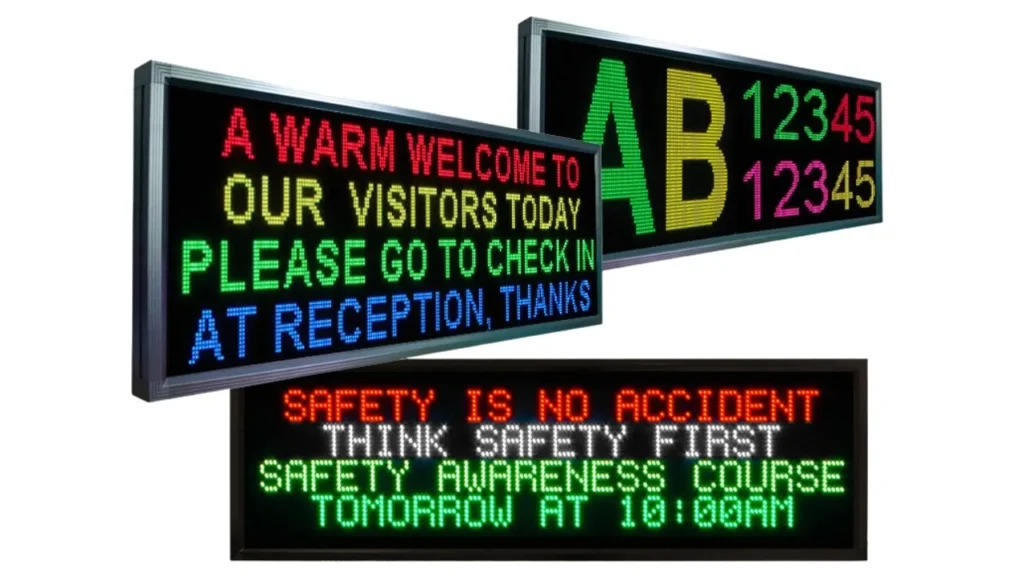
It is quite easy to change signs on an LED board if you do every step correctly.IvanLED provides LED screens with strong control and simple-to-use computer software. You can get help and enjoy top-quality displays with IvanLED. Contact us now for expert support and high-quality displays.