










Step 1: Turn Off the Power
For you to reset an LED display, the first step you need to take is to power down the system. You can do this by unplugging it from the main power source, which can be either a battery or an electrical system.
But this is why this process is important – It prevents any electrical issues that you may incur while trying to reset the LED display.
Now, after turning it off, wait for a few minutes, depending on the size and type of display you are using at the moment. This brief pause allows your display to fully power down, and this is important for a clean reset.
Additionally, turning the power off helps the system to clear temporary settings that were initially available before the reset process begins. Again, this is a powerful process since it may also fix minor system issues. This eventually helps in better LED display resetting process.
While still at it, you should know where the reset button is – you can refer to the user manual.
Note: There are certain LED program systems that will automatically enter reset mode by shutting down.
Step 2: Check the User Manual or Model Information
This is one step that many people ignore. In fact, from our experience, very few people read LED screen manufacturers manual. But this is an important step when resetting LED display.
Here are a few facts you must note here:
- Checking the user manual or model info of your LED display. While resetting it enables you to know the correct procedure to follow.
- Note that all displays are not the same. The only way you can reset LED screens are by using the correct user manual and model info.
- Check for the specific model number of your display, which you can find labelled at the back of the LED display.
- Follow the instructions stated carefully, as reset specifications are diverse and different on models. Some models may require you to navigate through the system settings.
- Other models may direct you to hold down the reset button for several seconds while powering on the system.
Step 3: Locate the Reset Button or Menu Option
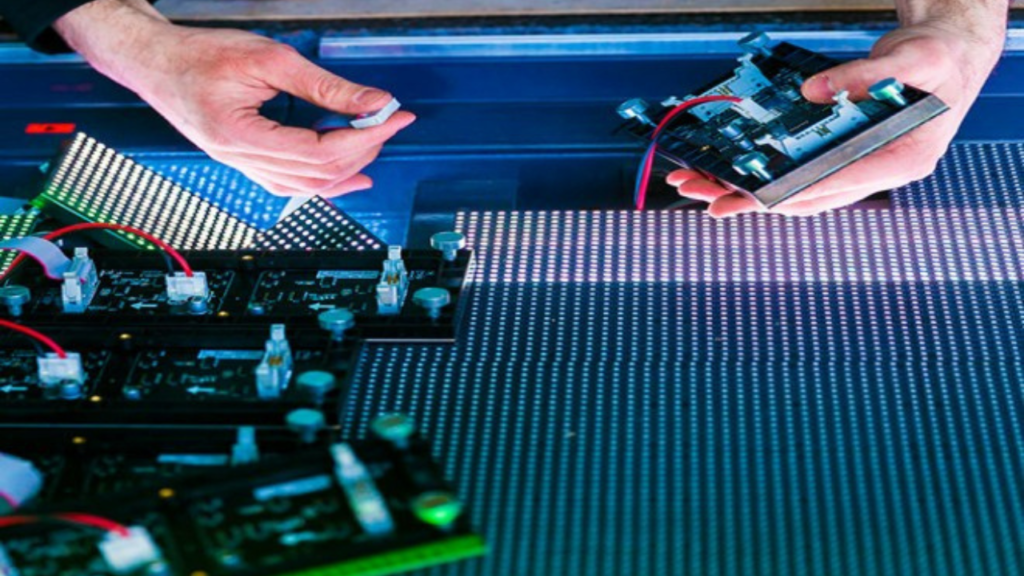
With the help of your LED display manual, while comparing the drawings and symbols, you should locate the reset button on your display screen.
In most cases, you will find several LED units having their reset buttons placed either on the back panel, on the control box, or even inside the access panel.
While at this point, it is important to note these:
- According to the user manual, you may be told to hold down the reset button for some seconds while powering up the system.
- Also, some systems will need you to press down the power button when powering on, as this may initiate a factory.
It is also important to note that you may have an LED screen that does not have an option for reset button. In such situations, you will have to navigate through the LED screen system.
While navigating through the menu options, search for a command titled factory reset and select it. It may later pop-up prompts that you’ll have to confirm to start the reset process.
Note that by doing this, you’ll restore the display to its default configuration it came with which includes brightness settings.
At all times, when resetting your displays, consult the user manual made for your specific model, as this helps a lot. By properly going through the user manual, you shall have sorted out most of the issues related to the reset issue.
Step 4: Perform the Reset
Performing the reset is now the central step that covers all the processes that you’ll use while resetting the LED display. Usually, this comes after you have gone through the user manual and have gotten the correct procedure specific to the model you are resetting.
After you have powered down the system, found the reset button or menu option, slowly and carefully go through the reset procedure. If your system needs you to press the reset button several times to allow it to reset, kindly do so.
Also, in case your display requires you to navigate through the menu options to prompt up reset functions – that will also work for you. Remember, as the reset progresses, the display might go dark or even blink a couple of times. This shows that the system is clearing up.
Once the entire process is complete, the display by itself might restart and power up with its default settings. In some systems, the LED display may restart several times – allow the process to complete uninterrupted.
Note: Successfully resetting your display can solve different issues on your display, as it clears up the entire system.
Step 5: Reconfigure Settings
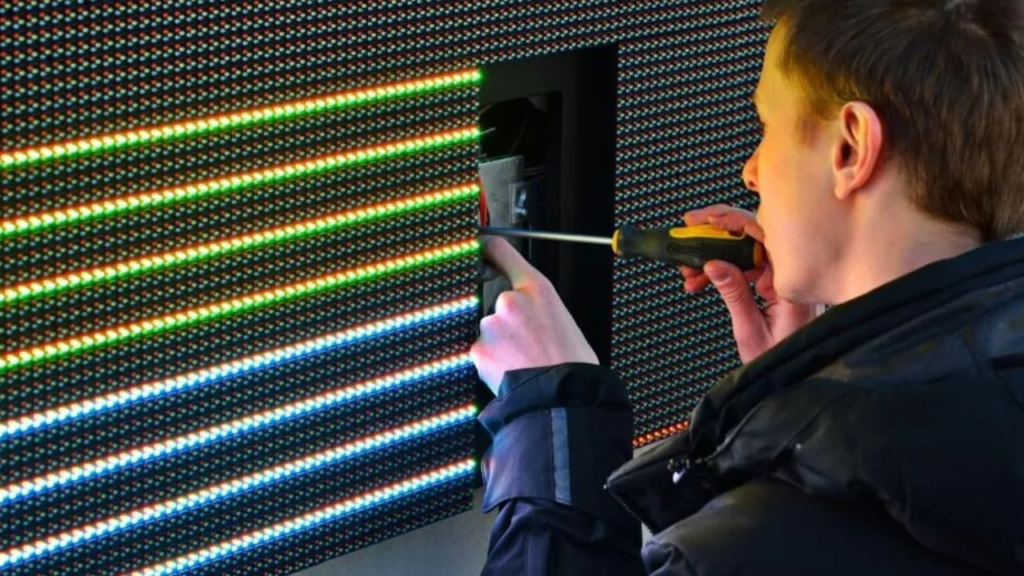
But resetting LED display does not just end at step 5 above. You must reconfigure or program LED display.
Reconfiguring your settings is a key step, as this enables you to restore the functionality of your display aligned to your needs.
When the display restarts and power is back on, it means that all the settings preferences will go back to default. You need to start this procedure by accessing and navigating through the menu options of your display.
It is important to note that you need to go for the basic options such as brightness settings, font size, scrolling speed, and time schedules. During the process, you should ensure the contrast and brightness of your display should align with the environment around you and also the intended use of your display.
Also, you can download and place different wallpapers on your display’s home screen if it suits you. During this process, ensure that all the external devices that were connected to your display before resetting are connected back and working correctly.
Finally, review all your settings to ensure that no errors have been made and that the display performs properly. After this, you need to save your configurations to avoid issues of reconfiguration again.
Note: Reconfiguration enables the display to perform optimally and display the correct information to users.
Conclusion
You should test if the system is working correctly after resetting the LED display board. Simply power on the LED screen setup, and check is every configuration is worked as you desire.
At IvanLED, our team is always ready to help you reconfigure or reset LED display boards for free. Our online support team is always here to help you with all your LED display board problems – for inquiries, contact us now.