










Essential Components and Tools
Before connecting an LED display to Arduino, ensure that you have the correct equipment and programs.
Hardware Requirements:
o Arduino Board (e.g., Uno, Mega): Use Uno or Mega on most projects; they are trusted, suited for beginners and provide support for a wide range of displays.
o Breadboard and Jumper Wires: Allow you to attach and reattach parts of your robot easily and neatly wire everything during the project.
o Resistors (commonly 220Ω): Be sure to use low currents with LEDs during both prototyping and when the circuit is in production.
o Specific LED Display Modules: Based on what you want to do, decide between LCD, 7-segment, matrix or RGB strip for output to your audience.
o Potentiometer (for LCD contrast adjustment): Helps adjust contrast so the characters on an LCD screen are clear.
o External Power Supply (for high-power displays): Power can be provided externally through an external source. Necessary for heavy-duty displays that call for much more current than Arduino can deliver
Software Requirements:
o Arduino IDE: It allows writing and uploading code for Arduino without cost. You can download the application from the official site.
o Relevant Libraries: Use the LiquidCrystal, LedControl or FastLED libraries to easily program displays.
Connecting a Single LED to Arduino
- Wiring Instructions: Add a 220Ω resistor between the longer leg of the LED and a digital pin. Connect the shorter leg which is the cathode, to the GND pin.
- Programming Basics: Use the Arduino IDE to write a simple sketch. In setup (), define the pin as OUTPUT. In loop (), use digital Write () to turn the LED on and off.
- Safety Tips: A resistor should always be included to stop the LED from burning out. Double checking the pins is important, as is using current protection when connecting the LED directly to the Arduino.
Integrating a 16×2 LCD Display
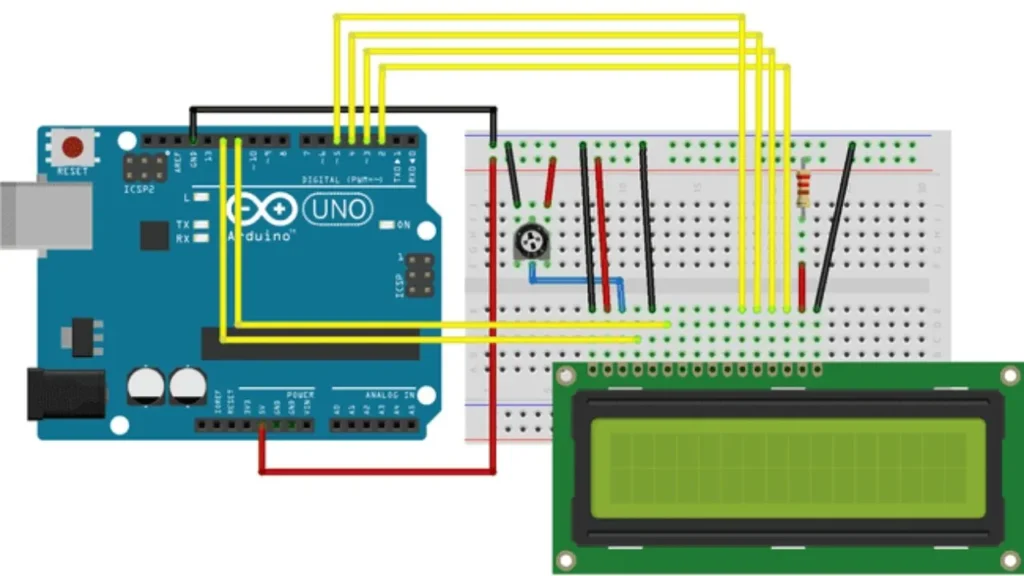
- Pin Configuration: There are 16 pins on the 16×2 LCD: RS for command, E for latching information, D4-D7 for data, VSS and VDD for power and Vo for aligning the contrast with a potentiometer.
- Wiring Guide: Link the RS, E and data pins from the shield to the corresponding digital pins on the Arduino. Put Vo into the center pin of the potentiometer. Get the LCD running by connecting 5V and GND from the Arduino to the LCD.
- Programming with Liquid Crystal Library: Include the Liquid Crystal library in your code. Define the control and data pins in your sketch. Use lcd.begin(16, 2) and lcd.print() to display text messages.
- Advanced Features: You can design a custom character using lcd.createChar(), scroll text up the screen using lcd.scrollDisplayLeft() and refresh the screen with lcd.clear().
Working with 7-Segment Displays
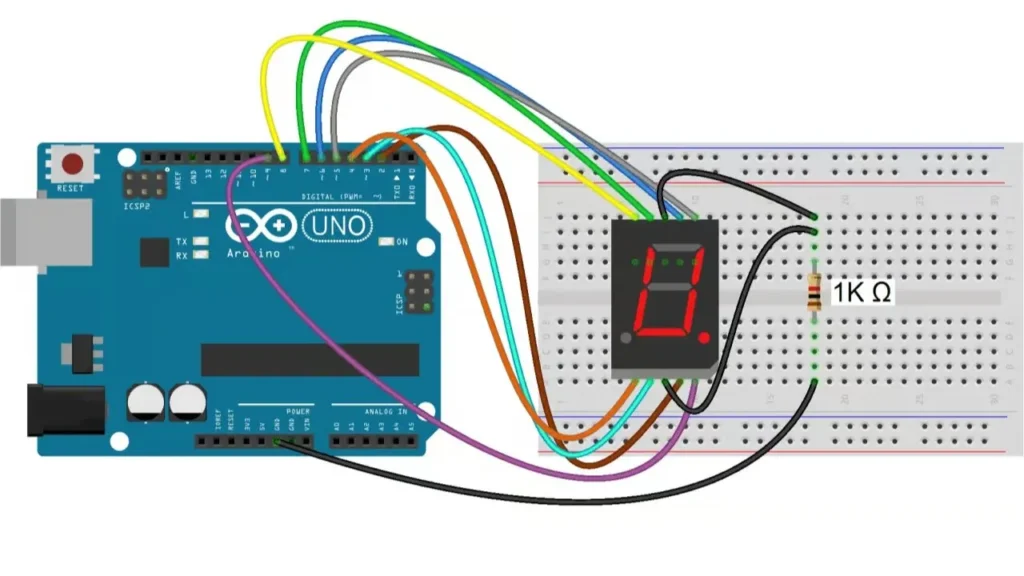
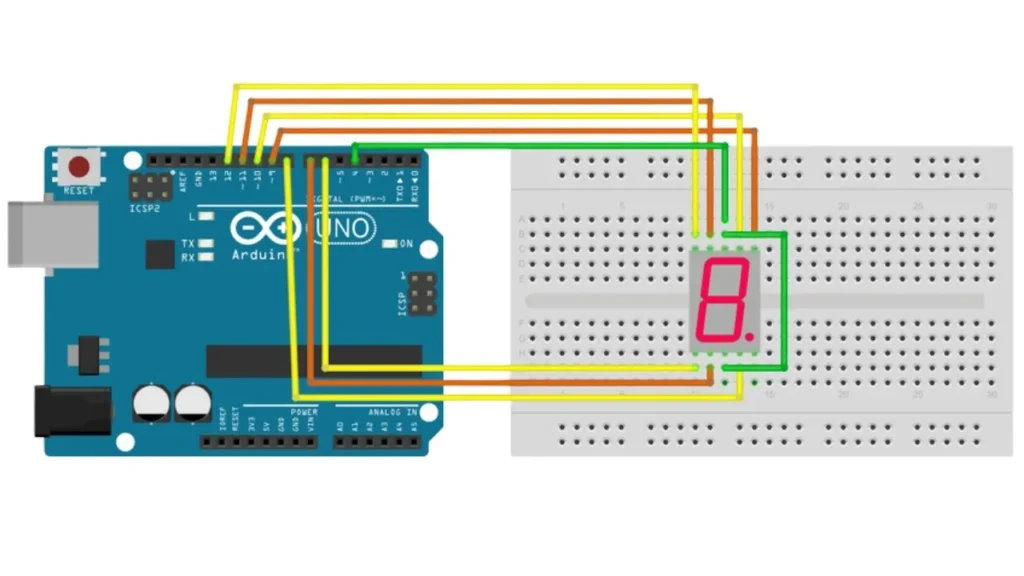
- Understanding the Display: A 7-segment display involves seven LEDs, named a to g, for displaying numbers. Common cathode and common anode are the only types, both of which you have to mind while connecting and controlling the LEDs.
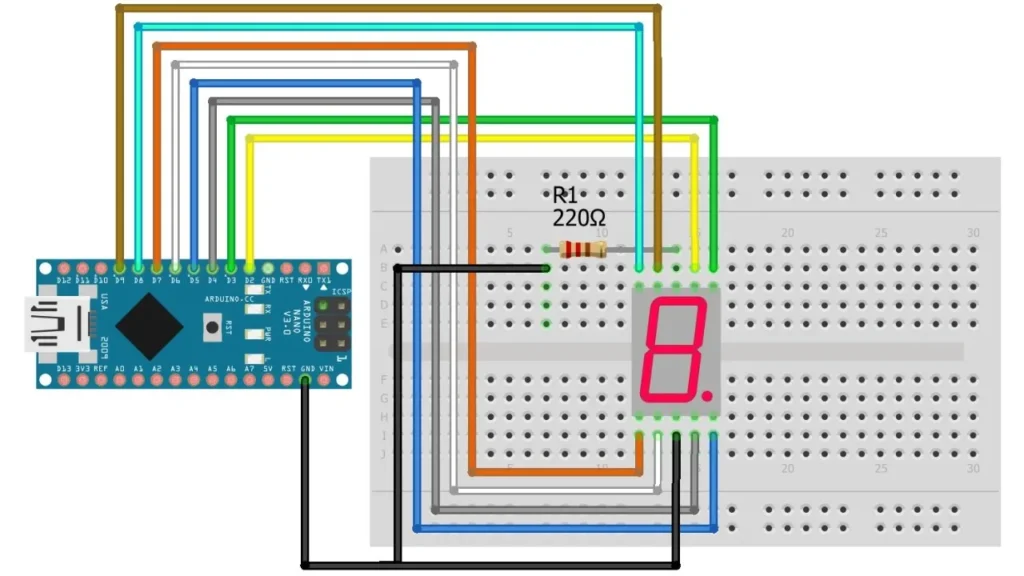
- Wiring Techniques: Attach every segment (a to g) to Arduino digital pins using 220Ω resistors. Link the common pin of the LED bar to GND (cathode) if you are using an NB display or to 5V (anode) if you have an OV display.
- Programming Logic: Assign each number an array of segments it will light up. Use digitalWrite() to show the digits 0 to 9 on the LED display one by one.
Utilizing LED Matrix Displays
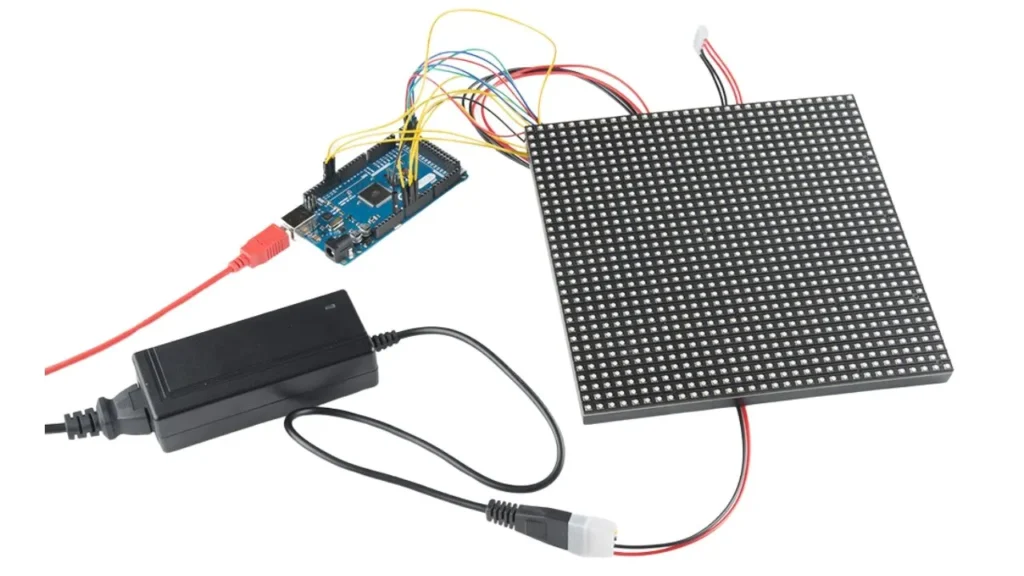
- Overview of LED Matrices: An LED matrix consists of LEDs positioned in rows and columns. You can use CSS to show text, numbers and symbols. Since LEDs can be controlled separately, they’re suited for changing messages, symbols or fundamental animations in modern gadgets, dashboards and signage.
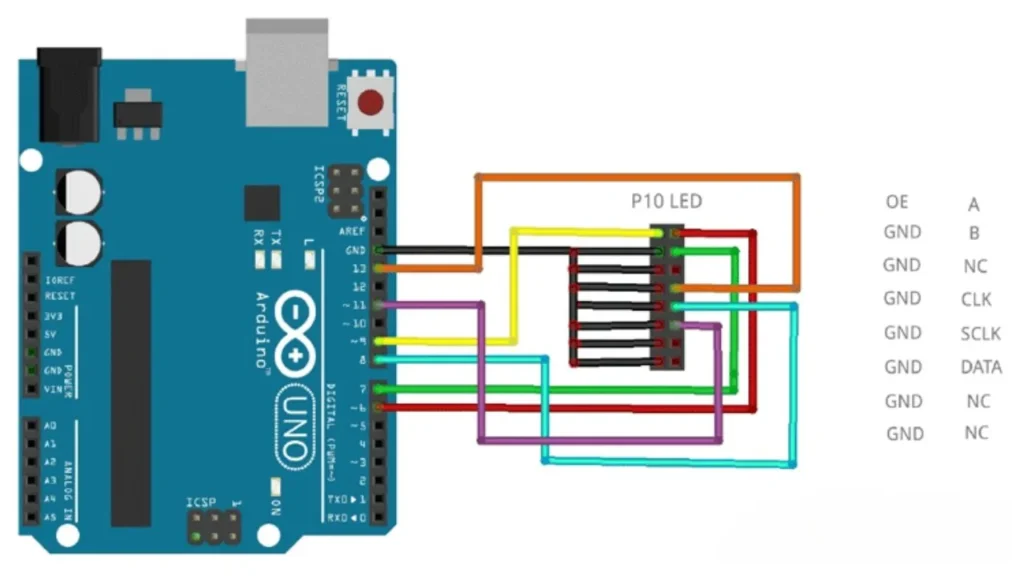
- Connecting with MAX7219 Driver: The MAX7219 driver allows you to connect an 8×8 LED matrix to an Arduino through only three pins: DIN, CS and CLK. Connect them to digital pins 11, 10 and 13. Supply voltage to the module by providing power through 5V and GND. It simplifies the process and allows you to easily add more displays.
- Programming with LedControl Library: In the Arduino IDE, install the LedControl library. Initialize the Arduino with LedControl lc = LedControl(12,11,10,1);. Then, LEDs can be controlled by using the function lc.setLed(0,row,col,true). You can also use lc.clearDisplay(0) or display entire patterns by writing to specific matrix coordinates.
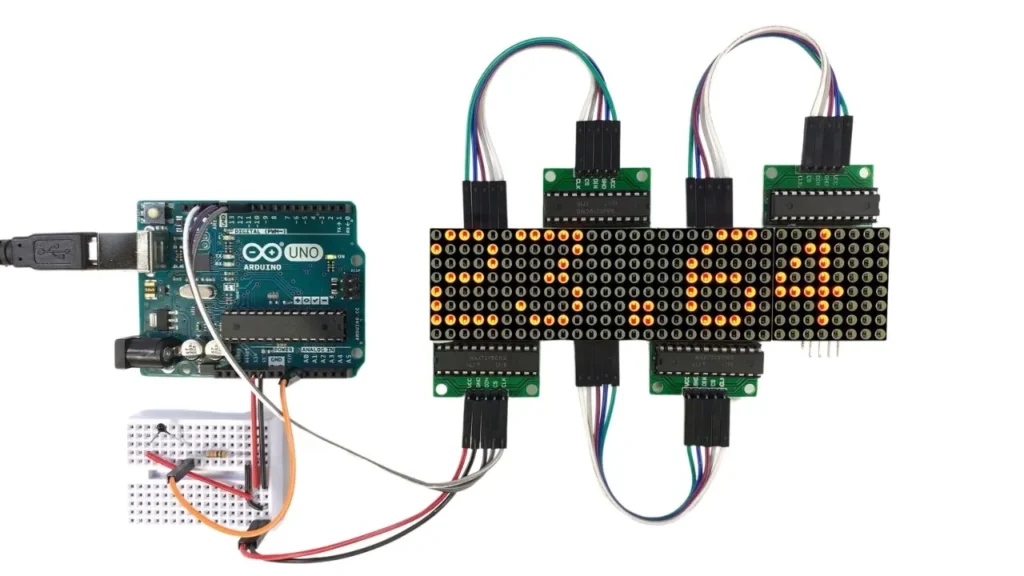
- Chaining Multiple Matrices: Ensure the DOUT of a MAX7219 is connected to the DIN pin on the following module. Ensure the number of devices in the library is correct. Doing this, you can have larger messages or displays spanning multiple matrices from one Arduino board.
Controlling RGB LED Strips
- Types of RGB Strips: These lights are available in two types: analog and digital RGB LED strips. All the small lights on each analog strip are triggered in a similar color, but digital LEDs like WS2812B can be set individually. Creating patterns, animations or lighting in smart products is best done with digital strips.
- Wiring Instructions: Connect the DIN pin on your strip to the Arduino Pin D6. Supply VCC with 5V power and connect both Arduino and 5V power supply grounds to GND. Add a 1000µF capacitor between the positive and ground pins and put a 470Ω resistor between the Arduino and DIN.
- Programming with FastLED Library: Install the FastLED library into your software. Make sure to outline how many LEDs will be in use and the data pin you will use. Set up the LEDs by using FastLED.addLeds<WS2812B, 6, GRB>(leds, NUM_LEDS). Set the color for each pixel using CRGB::Red and use FastLED.show() to animate and alter the lighting.
- Advanced Effects: Visual effects look great if you use fill rainbow() and fadeToBlackBy(). Use both LED lights and sensors or triggers to create interactive lighting effects. For these purposes, this is ideal: visual feedback and interacting with devices or programs are best shown using this technology.
Troubleshooting Common Issues
- Display Not Powering On: The first thing to do is to make sure your power supply is connected. Many displays require more current than what Arduino give. Make sure to use an external power supply and ensure that all GND connections are correctly linked.
- Incorrect Characters or Flickering: Be sure to look over the wiring, mainly the data and control pins. A flickering TV is most likely the result of broken cords or reduced supply of electricity. Make sure your library is supported by the Arduino device you are using.
- Library Conflicts: Upon using identical timers or pins, two libraries will experience conflicts. Skip using extra libraries and use the approved ones for the display. After making changes, close the IDE and start it again.
- Tips for Reliable Performance: Insert decoupling capacitors near the display and use only a short jumper wire. Never connect high-current displays directly to your computer’s USB. Work with code that has been proven to function and just one device before doing anything else.
Conclusion
Understanding how to work with various LED displays using Arduino, helps you acquire a vital skill for electronics, automation and IoT development. While creating a prototype or delivering training, following these steps allows you to construct interactive and effective visual interfaces for electronic devices. Need help selecting the right display for your next build? Contact IvanLED to speak with an expert.